In short
The MyParcel NL extension connects your OpenCart 3 shop to MyParcel. You export orders and print PostNL labels straight from the OpenCart order list, your customers can pick a delivery moment or a PostNL pickup point at checkout, and the Track & Trace code can be added to the order email. The extension has three parts: a Module with all the settings, a Shipping method for the checkout, and an Order Total that adds delivery option surcharges to the order.
Maintenance only
This manual describes version 1 of the extension, built for OpenCart 3.0.x and tested on OpenCart 3.0.2.0 with PHP up to 8.2. The extension supports PostNL only.
MyParcel adds no new features to this extension. MyParcel only fixes it when a change to the MyParcel API stops it from working. For a new shop, use the OpenCart 4 extension.
Quickstart, your first label in 20 minutes
Enough to ship your first order today. For the details, see Looking for… below.
- Account. Don't have a MyParcel account yet? Create one at myparcel.nl/register.
- Copy the API key. Log in to backoffice.myparcel.nl → Shop settings → Integration → copy the API key.
- Install the extension. Download the
.ocmod.zipfrom the latest release, upload it under Extensions → Installer and click Refresh under Extensions → Modifications. - Switch on the three parts. Under Extensions → Extensions, install Myparcel NL (type Modules), MyParcel Shipping (type Shipping) and MyParcel Total (type Order Total).
- Paste the key. Open System → MyParcel, paste the key in API on the General tab and save.
- Print a label. In Sales → Orders, click Export to MyParcel next to an order, then Print MyParcel label.
You're done when you see this
- The label PDF downloads or opens in a new tab
- The order shows a Track & Trace code and a status such as pending - registered
- The shipment appears in your MyParcel backoffice
Looking for…
| What do you want to do? | Go to |
|---|---|
| Understand the three parts | 1 · How the extension works |
| Install the extension | 2 · Installing |
| Enter the API key and general settings | 3 · Settings · General |
| Choose package types and default options | 4 · Settings · Default export settings |
| Offer delivery moments and pickup points | 5 · Settings · Checkout |
| Set HS codes for customs | 6 · Product settings |
| Check what your customers see | 7 · The checkout experience |
| Export orders and print labels | 8 · Daily use |
| Something's not working | 9 · Something's not working, diagnostics |
| Answer to a frequently asked question | 10 · FAQ |
1 · How the extension works
The extension consists of three parts. You need all three for the full experience.
| Part | Where | What it does |
|---|---|---|
| Myparcel NL | Extensions → Extensions → Modules | All settings, and the MyParcel actions in your order list. Also reachable under System → MyParcel. |
| MyParcel Shipping | Extensions → Extensions → Shipping | The shipping method your customer picks at checkout. The MyParcel delivery options are shown inside it. |
| MyParcel Total | Extensions → Extensions → Order Total | Adds the surcharge of a chosen delivery option, such as evening delivery, to the order total. |
From the order list you send an order to MyParcel (export), and the extension downloads the PostNL label. The Track & Trace code is stored on the order and can be added to the email to your customer.
2 · Installing
- Make a backup of your shop, or try the extension on a copy first.
- Download the
.ocmod.zipfile from the latest MyParcel OpenCart 3 release. - Go to Extensions → Installer, click Upload and choose the zip file.
- Go to Extensions → Modifications and click Refresh (the blue button at the top right). Without this step the extension does not work.
- Go to Extensions → Extensions and install the three parts with the green + button:
- choose Modules and install Myparcel NL;
- choose Shipping and install MyParcel Shipping;
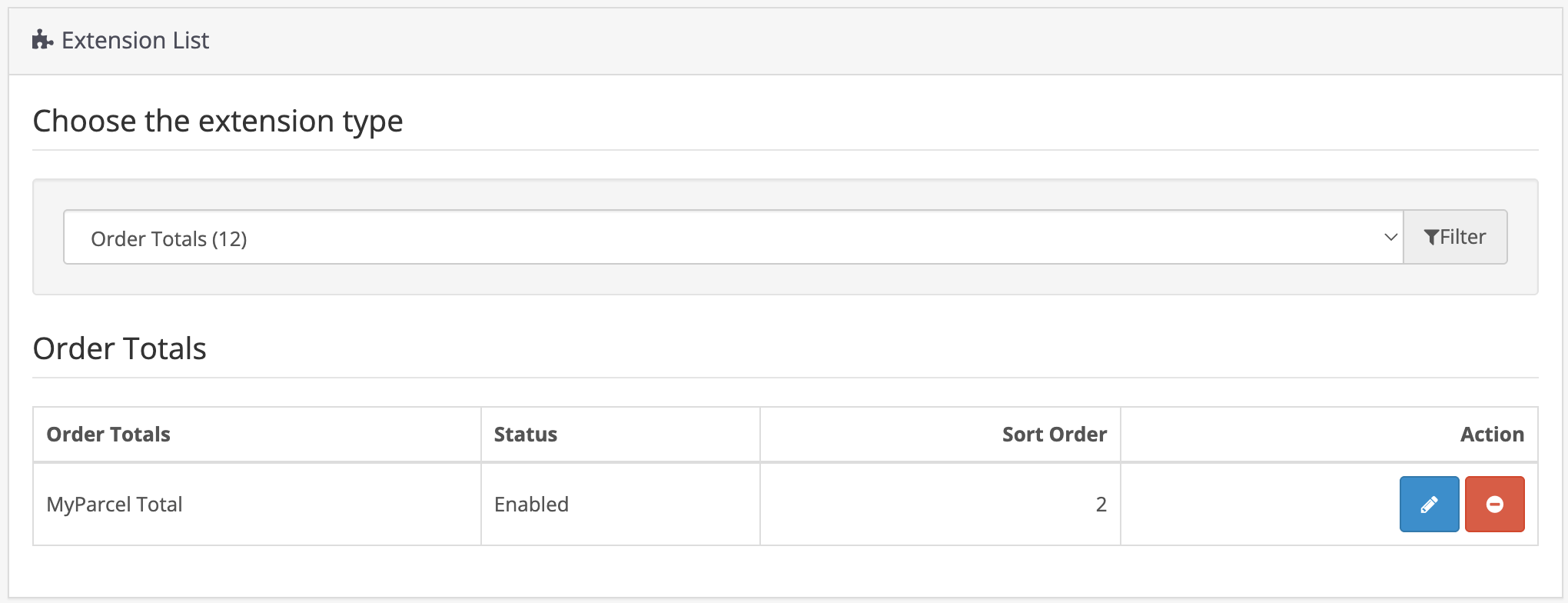
- choose Order Total and install MyParcel Total.
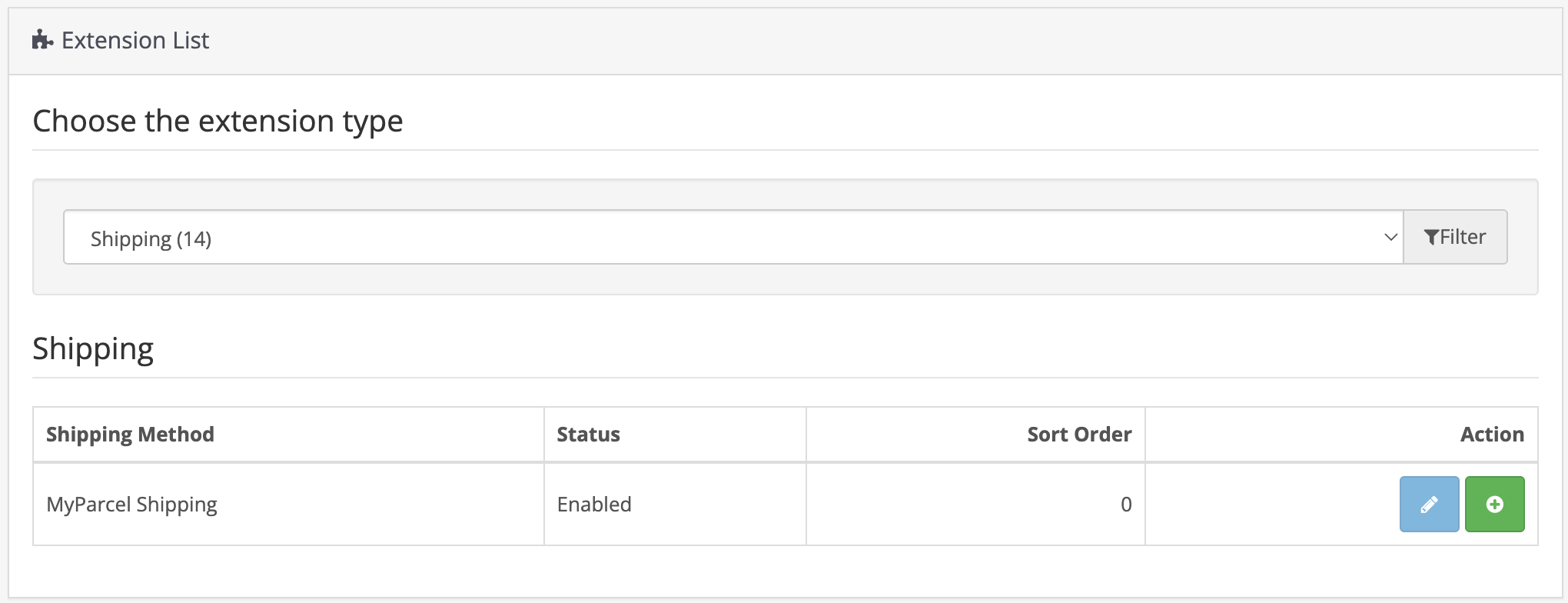
Then click the pencil next to MyParcel Shipping and check the settings:
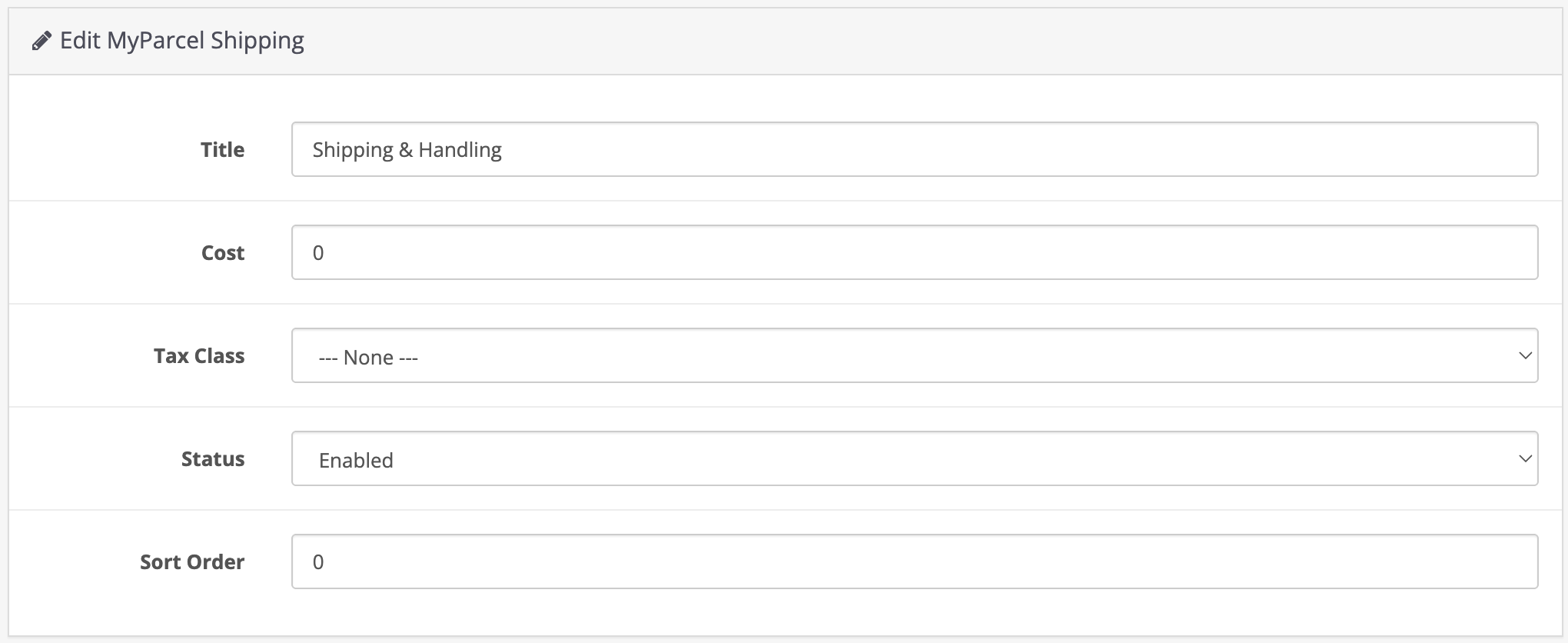
| Setting | What it does |
|---|---|
| Title | The name of the shipping method at checkout. |
| Cost | The base shipping cost. Surcharges for delivery options are added on top. |
| Tax Class | The tax class for the shipping cost. |
| Status | Set to Enabled to show the method at checkout. |
| Sort Order | The position among your other shipping methods. |
Finally, check that MyParcel Total is enabled under Order Total. Its sort order decides where the surcharge appears in the totals.
Shipping is not the settings page
The pencil next to MyParcel Shipping only shows the fields above. All other settings are in the module: System → MyParcel, or the pencil next to Myparcel NL under Modules.
3 · Settings · General
Open System → MyParcel. The settings page has three tabs: General, Default Export Settings and Checkout. Click the blue save button at the top right after every change.
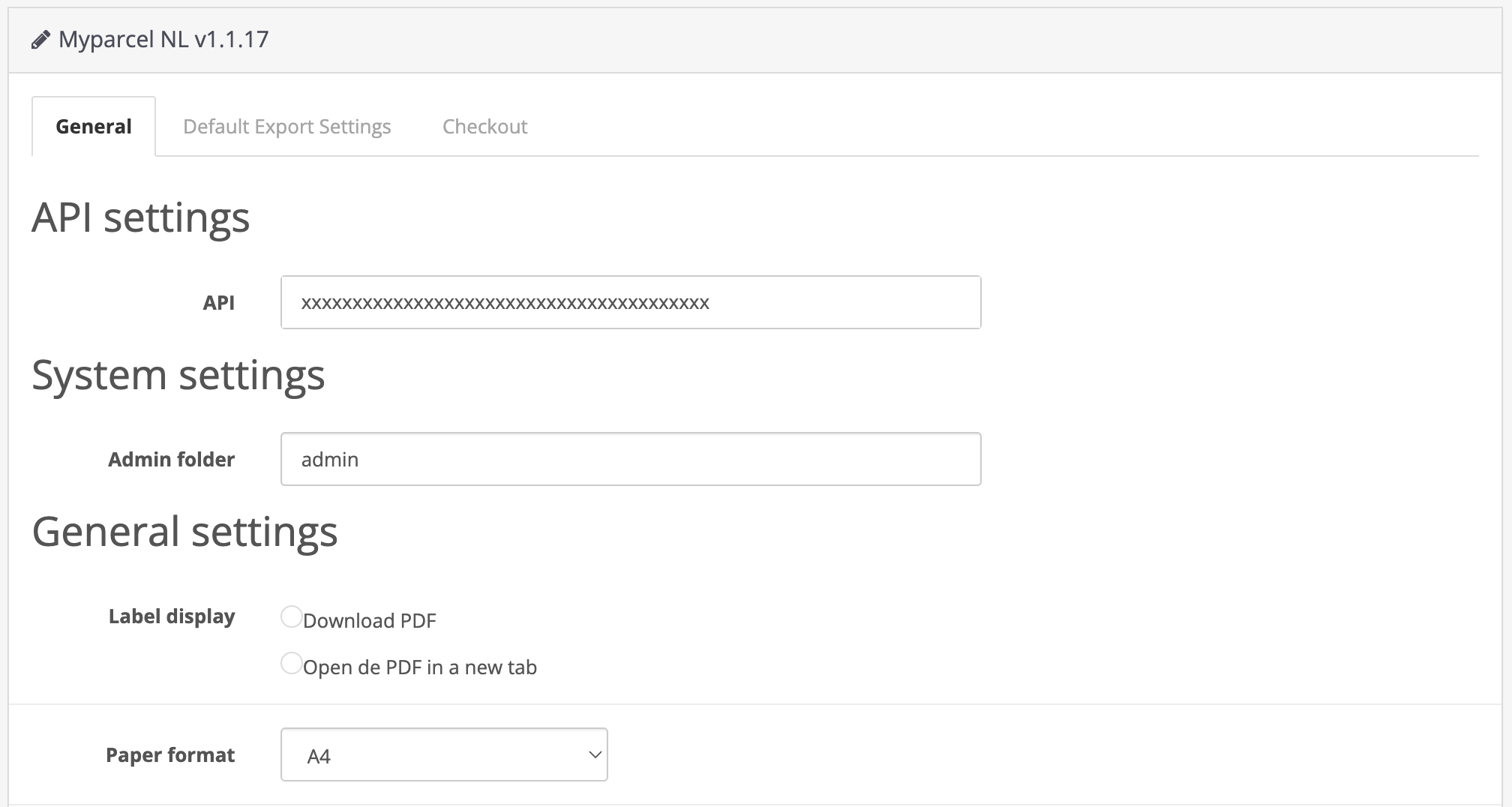
| Setting | What it does | Recommended |
|---|---|---|
| API | Your MyParcel API key, from backoffice.myparcel.nl under Shop settings → Integration. | Paste without spaces. |
| Admin folder | The name of your OpenCart admin folder. Only change it if you renamed that folder. | admin |
| Label display | Download PDF saves the label, Open de PDF in a new tab opens it in your browser. | Your preference. |
| Paper format | A4 for a regular printer, A6 for a label printer. With A4 you choose the position on the sheet when you print. | A6 with a label printer. |
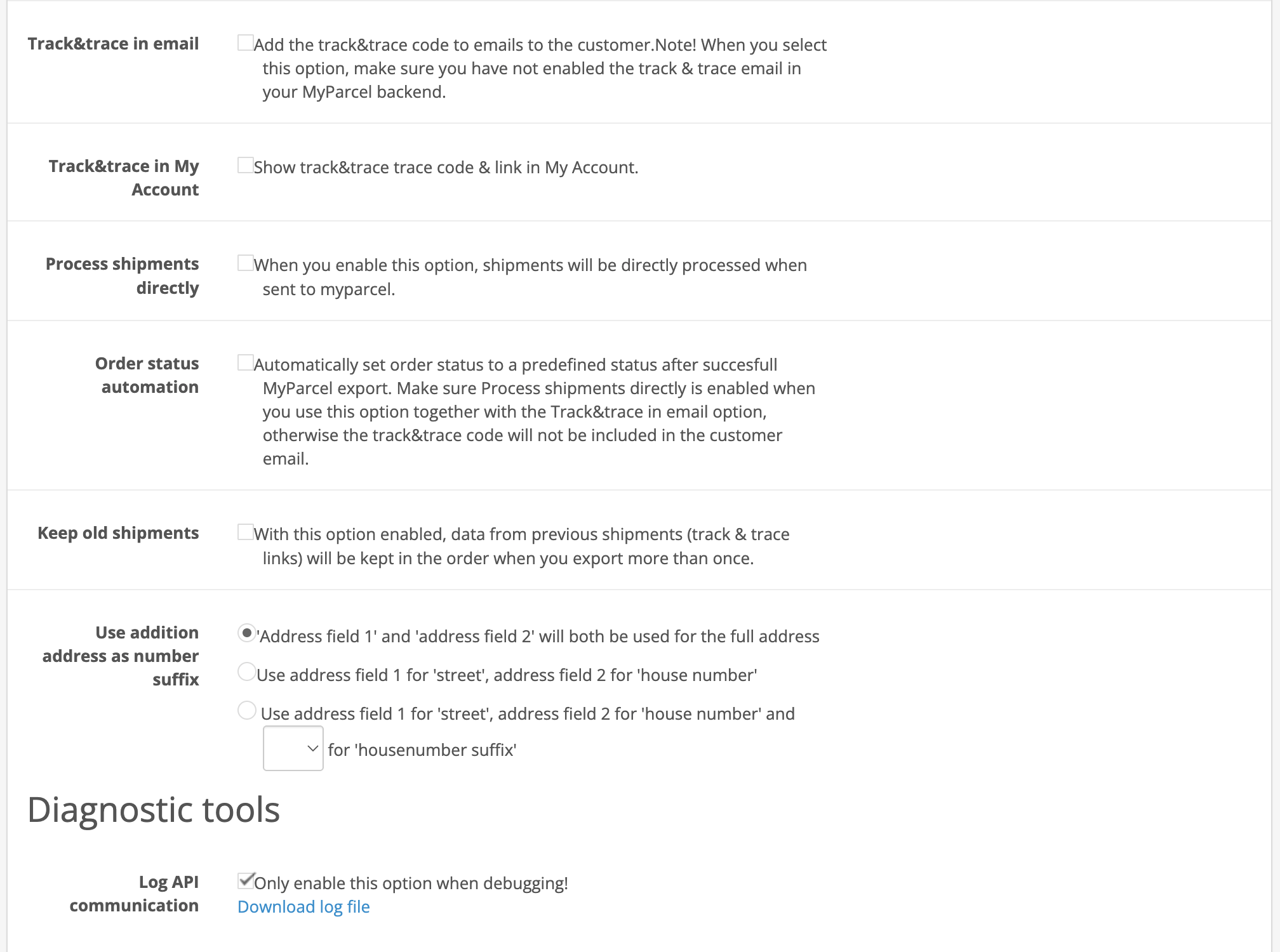
| Setting | What it does | When to switch it on |
|---|---|---|
| Track&trace in email | Adds the Track & Trace code to the order email to your customer. | When you want OpenCart to send the code. Then switch off the Track & Trace email in your MyParcel backoffice, or your customer gets two emails. |
| Track&trace in My Account | Shows the code and a link on the order in your customer's account. | Recommended. |
| Process shipments directly | Registers the shipment with PostNL as soon as you export it, so the label and Track & Trace code are created right away. Off, the shipment waits as a draft in your MyParcel backoffice. | When you print labels straight from OpenCart. |
| Order status automation | Sets the order to a status of your choice after a successful export. | Together with Track&trace in email, also switch on Process shipments directly, otherwise the email goes out without a code. |
| Keep old shipments | Keeps the Track & Trace links of earlier shipments on the order when you export it again. | When you sometimes send an order in more than one go. |
| Use addition address as number suffix | How the street, house number and suffix are read from the address fields: both fields as the full address, field 1 as street and field 2 as house number, or a third field for the suffix. | Match the way your checkout asks for the address. |
| Log API communication | Writes the traffic with MyParcel to a log file, which you download with Download log file. | Only while solving a problem. |
4 · Settings · Default export settings
These settings are the defaults for every shipment you export. You can change them per order before exporting, see §8.
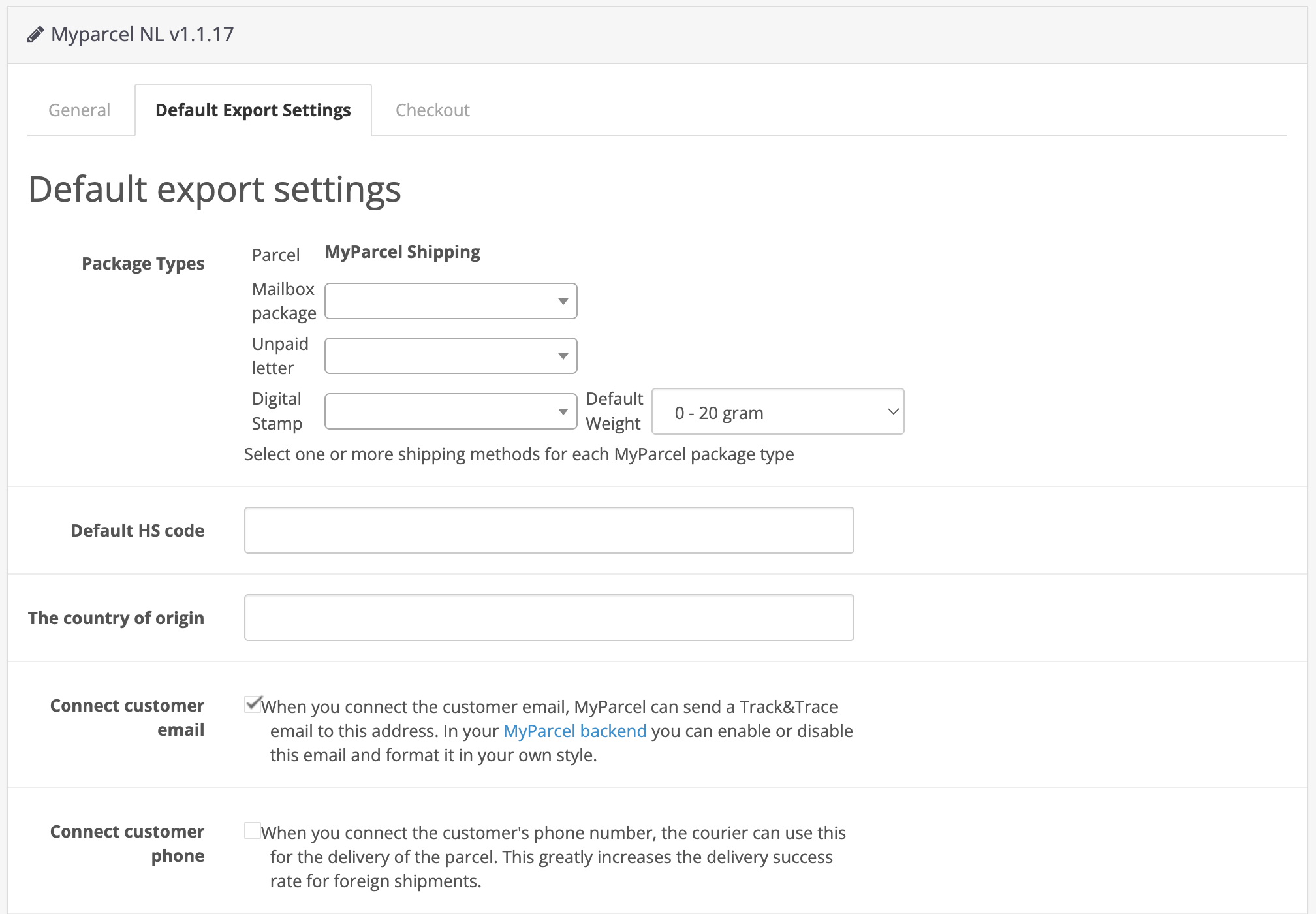
Package types
Under Package Types you link your OpenCart shipping methods to a MyParcel package type. Orders with MyParcel Shipping are always a Parcel. For each other type you select one or more shipping methods, for example Flat Rate:
| Package type | When to use it |
|---|---|
| Mailbox package | Small, flat items that fit through a letterbox. |
| Unpaid letter | A label without postage. |
| Digital Stamp | Letters with a digital stamp. Choose the weight class under Default Weight. |
Customs and contact details
- Default HS code and The country of origin. Used for shipments outside the EU when a product has no values of its own, see §6.
- Connect customer email. Sends your customer's email address with the shipment, so MyParcel can send the Track & Trace email. You switch that email on or off in your MyParcel backoffice.
- Connect customer phone. Sends the phone number with the shipment, so the carrier can reach your customer. This helps a lot for shipments abroad.
Shipment options
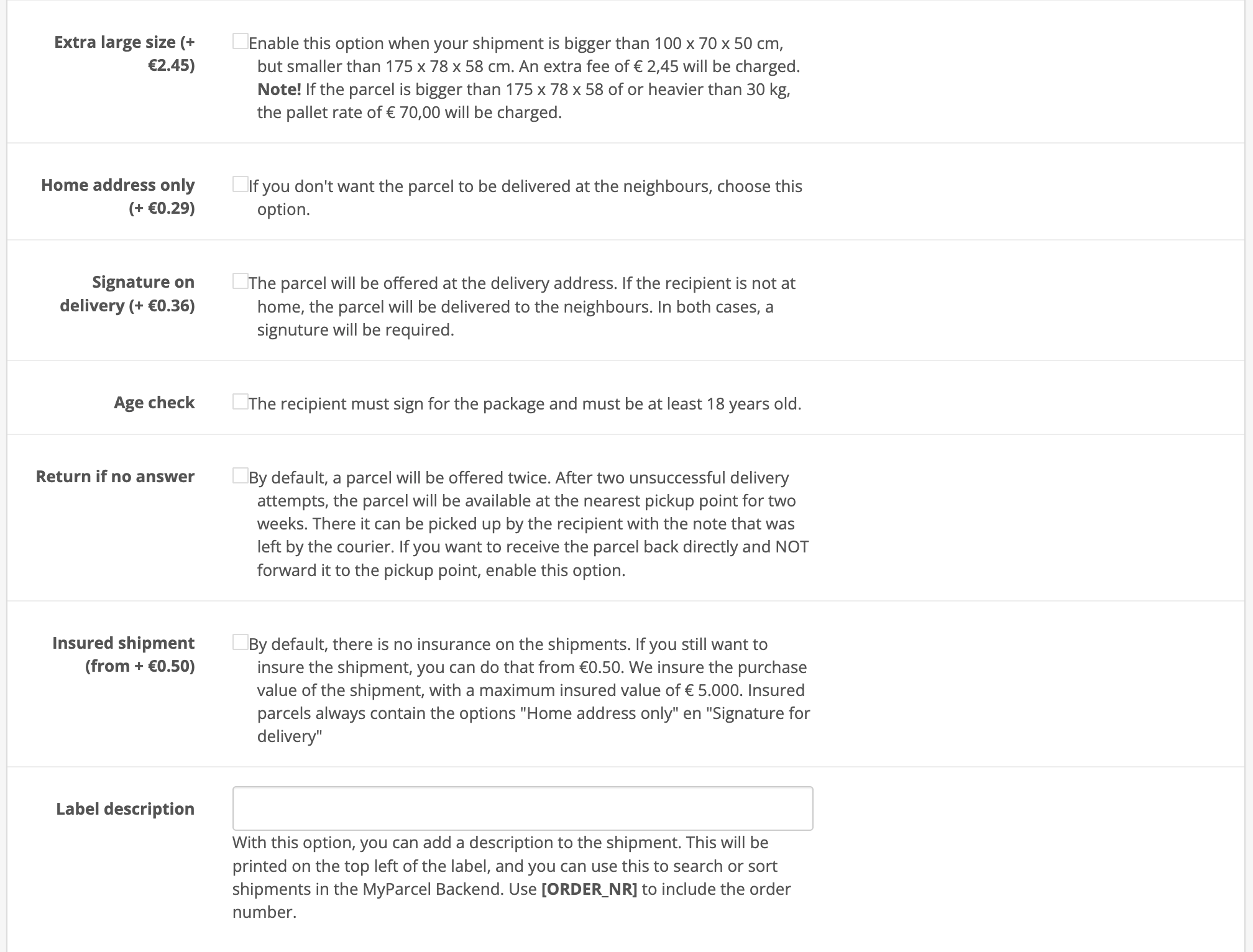
Each option is added to every parcel you export. Options can cost extra, check your MyParcel rates. The prices printed next to the labels in the extension are from an older rate card.
| Setting | What it does |
|---|---|
| Extra large size | For parcels larger than the standard size. |
| Home address only | The parcel is only delivered at the recipient's address, never with the neighbours. |
| Signature on delivery | The recipient signs for the parcel. |
| Age check | The carrier checks that the recipient is 18 or older. |
| Return if no answer | If nobody is home, the parcel comes back to you instead of going to a pickup point. |
| Insured shipment | Insures the purchase value. An insured parcel always comes with home address only and signature on delivery. |
| Label description | Text printed at the top left of the label. Use [ORDER_NR] to print the order number, so you can search on it in your MyParcel backoffice. |
5 · Settings · Checkout
The Checkout tab decides which PostNL delivery options your customers can choose. Tick Enable MyParcel delivery options to see all settings.
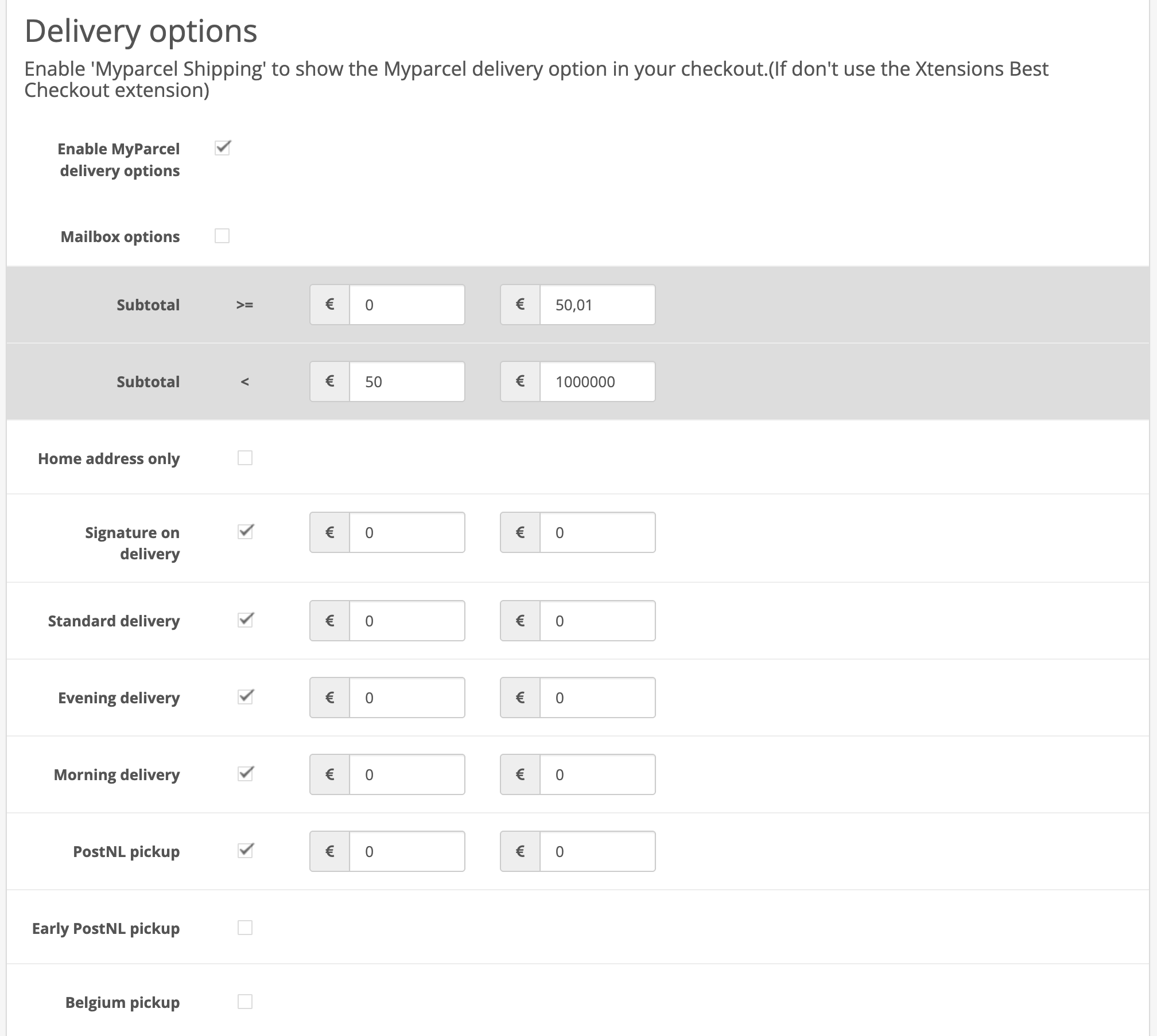
Delivery options and surcharges
Tick each option you want to offer. A ticked option gets two price fields, one for each Subtotal column. The two Subtotal rows set the order value range for each column, so you can, for example, charge for evening delivery on small orders and offer it free from €50.
| Option | What your customer gets |
|---|---|
| Standard delivery | Delivery during the day. |
| Morning delivery | Delivery in the morning. |
| Evening delivery | Delivery in the evening. |
| Signature on delivery | Your customer can ask for a signature on delivery. |
| Home address only | Your customer can choose delivery at the home address only. |
| PostNL pickup | Pickup at a PostNL point nearby. |
| Early PostNL pickup | Pickup at a PostNL point from early in the morning. |
| Belgium pickup | Delivery options for customers in Belgium, with a fee for standard delivery and one for pickup. |
Mailbox options lets your customer choose a mailbox package at checkout. You set a title, a fee and the maximum weight.
Shipment processing parameters
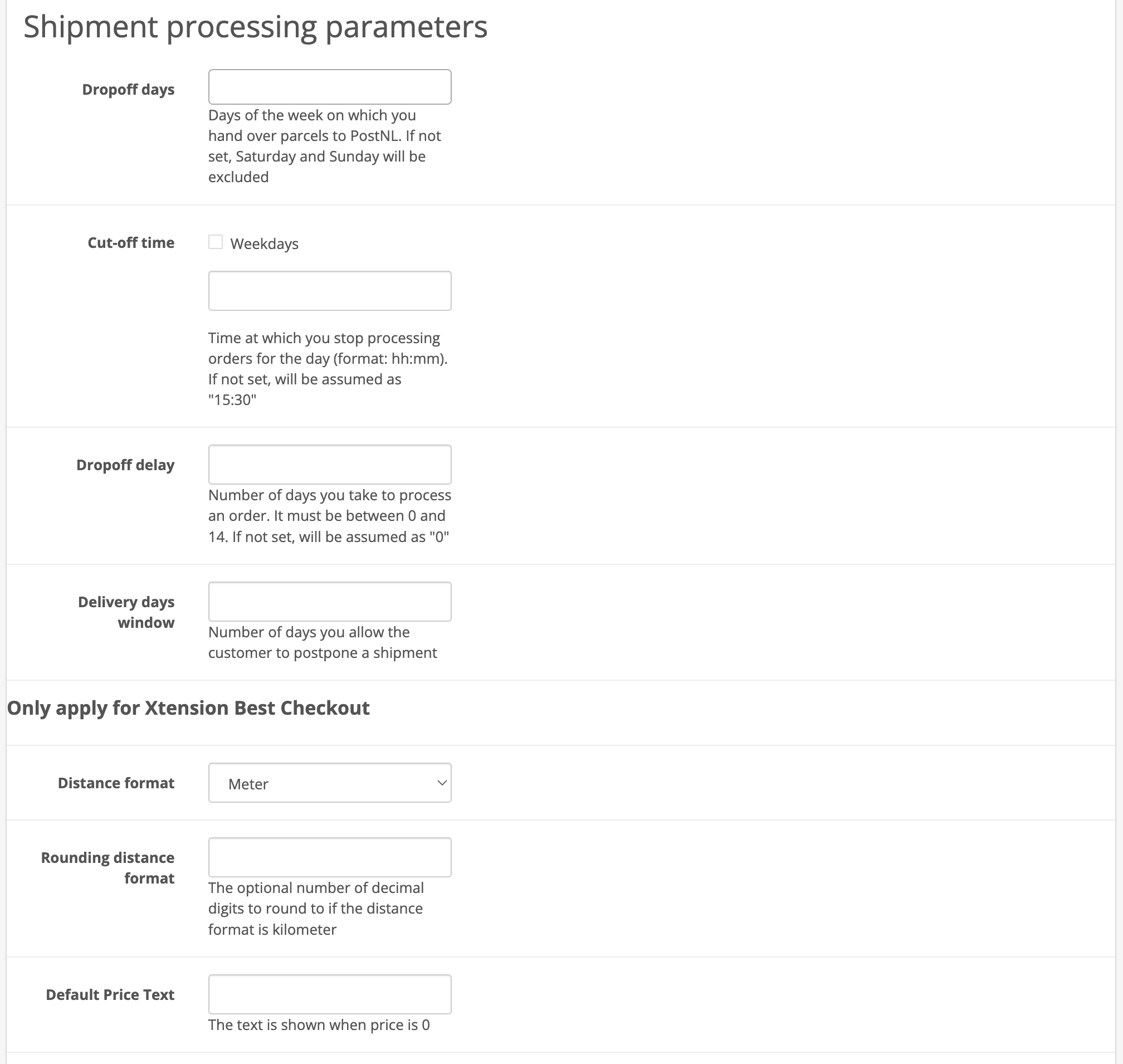
| Setting | What it does |
|---|---|
| Dropoff days | The days on which you hand parcels to PostNL. Empty means Monday to Friday. |
| Cut-off time | The time you stop processing orders for the day, as hh:mm. Empty means 15:30. Tick Weekdays to set a different time per day. |
| Dropoff delay | The number of days, 0 to 14, you need before an order is handed to PostNL. |
| Delivery days window | The number of days your customer can push the delivery back. Required as soon as delivery options are switched on, otherwise saving fails. |
The settings under Only apply for Xtension Best Checkout (distance format, rounding, the text shown when a price is 0 and the time format) are only used with the Xtensions Best Checkout extension.
Customizations
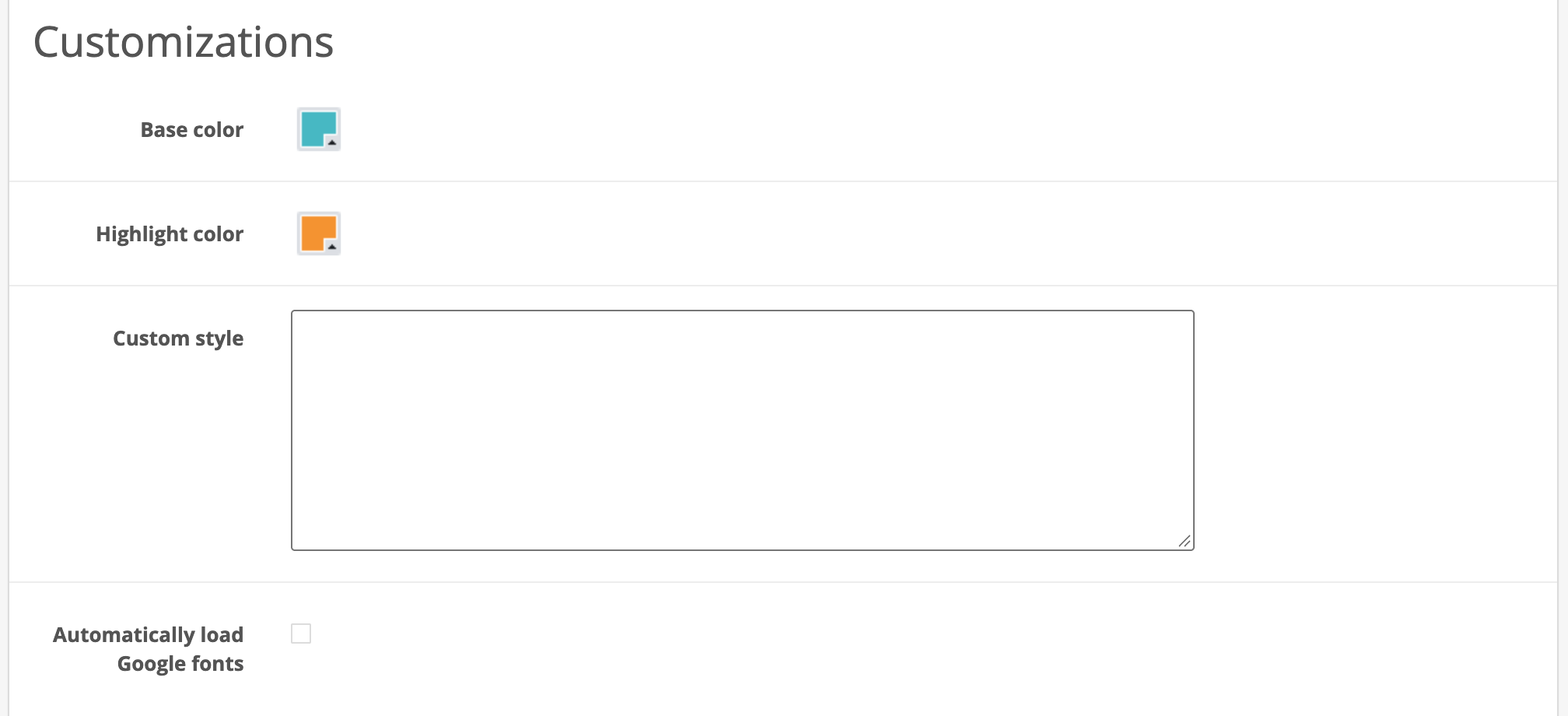
Base color and Highlight color set the colours of the delivery options, Custom style takes your own CSS, and Automatically load Google fonts loads the fonts the delivery options use.
6 · Product settings
The extension adds a My parcel tab to every product, with two fields for shipments outside the EU.
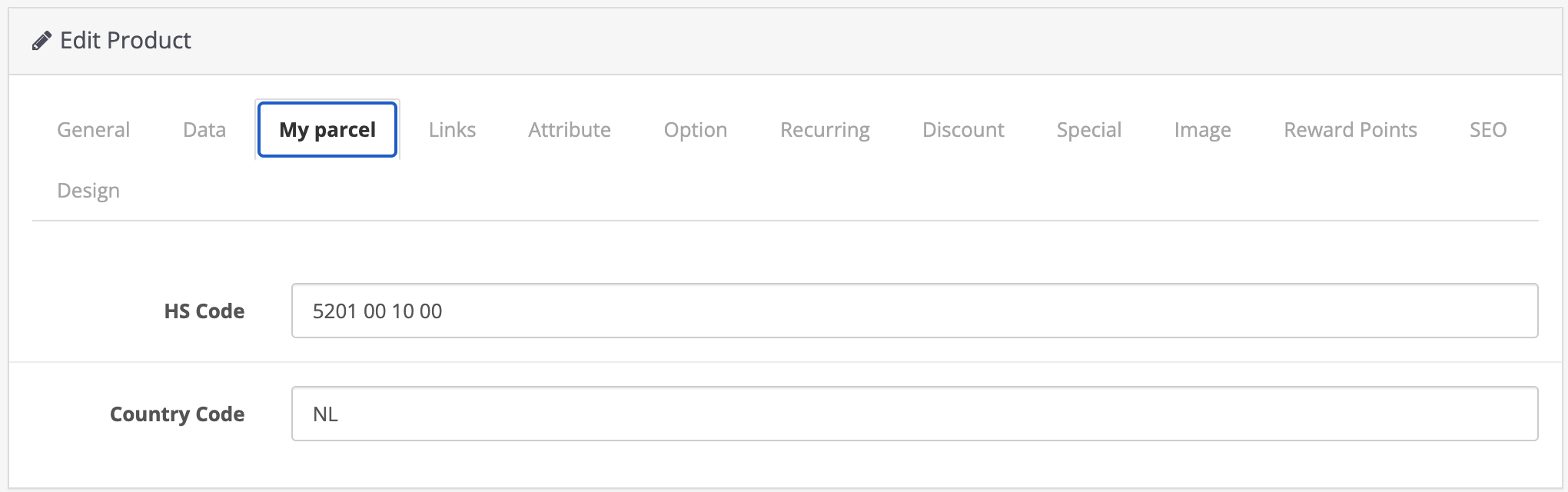
- HS Code. The customs code of the product.
- Country Code. The country of origin, for example
NL.
Empty fields fall back to the defaults from §4.
7 · The checkout experience
With delivery options switched on, your customer sees the PostNL options under Delivery Method in the checkout, inside MyParcel Shipping. The options are shown in Dutch.
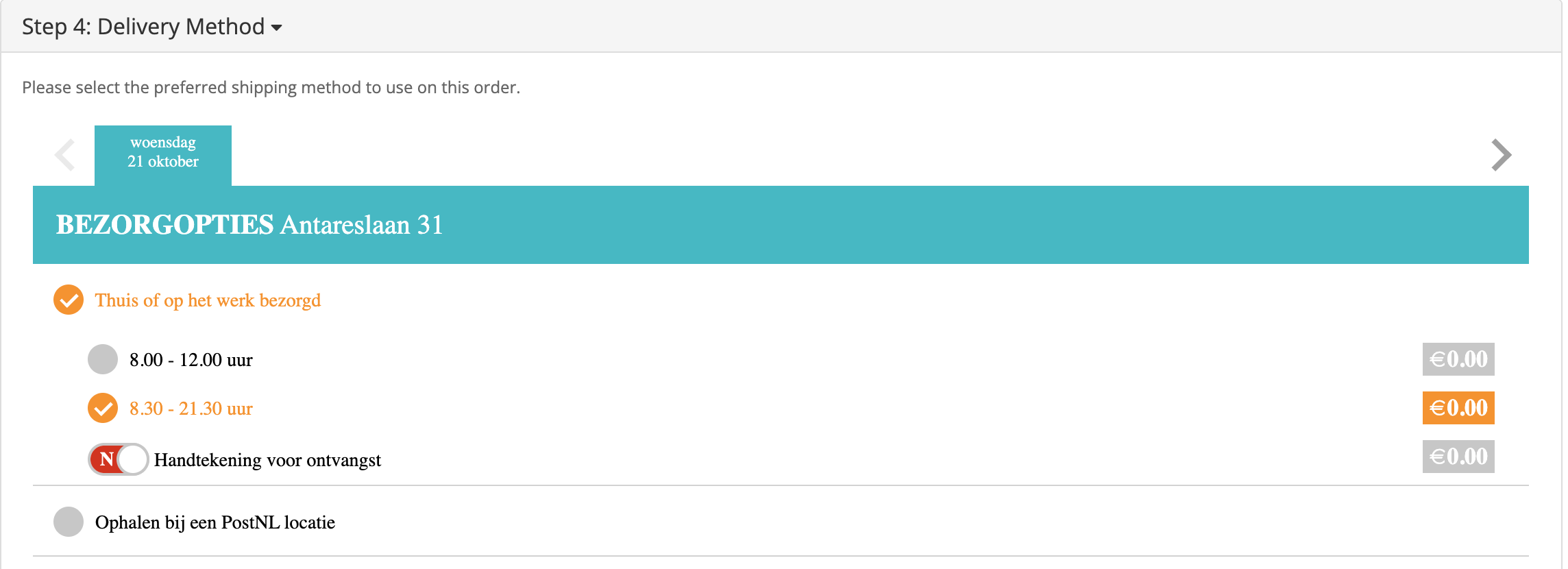
Under Thuis of op het werk bezorgd (Delivered at home or at work) your customer picks a delivery day and a time slot, and the extra options you switched on, such as signature on delivery.
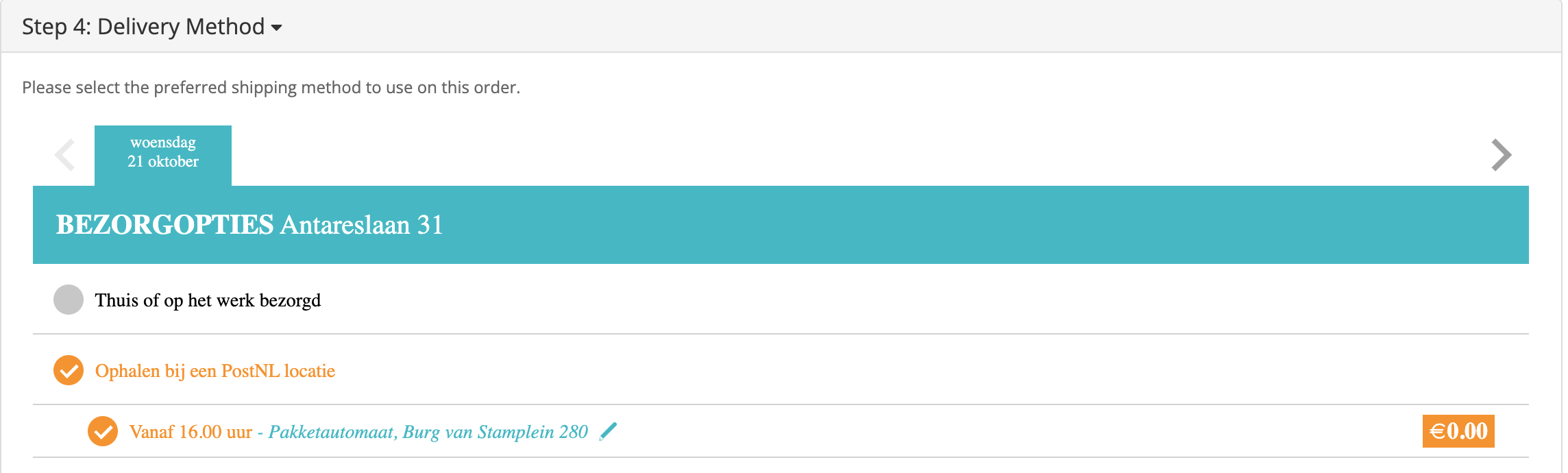
Under Ophalen bij een PostNL locatie (Pickup at a PostNL location) your customer picks a pickup point. The pencil opens the list of nearby points.
The choice is stored on the order and taken over when you export it.
8 · Daily use
The extension adds MyParcel actions to Sales → Orders.
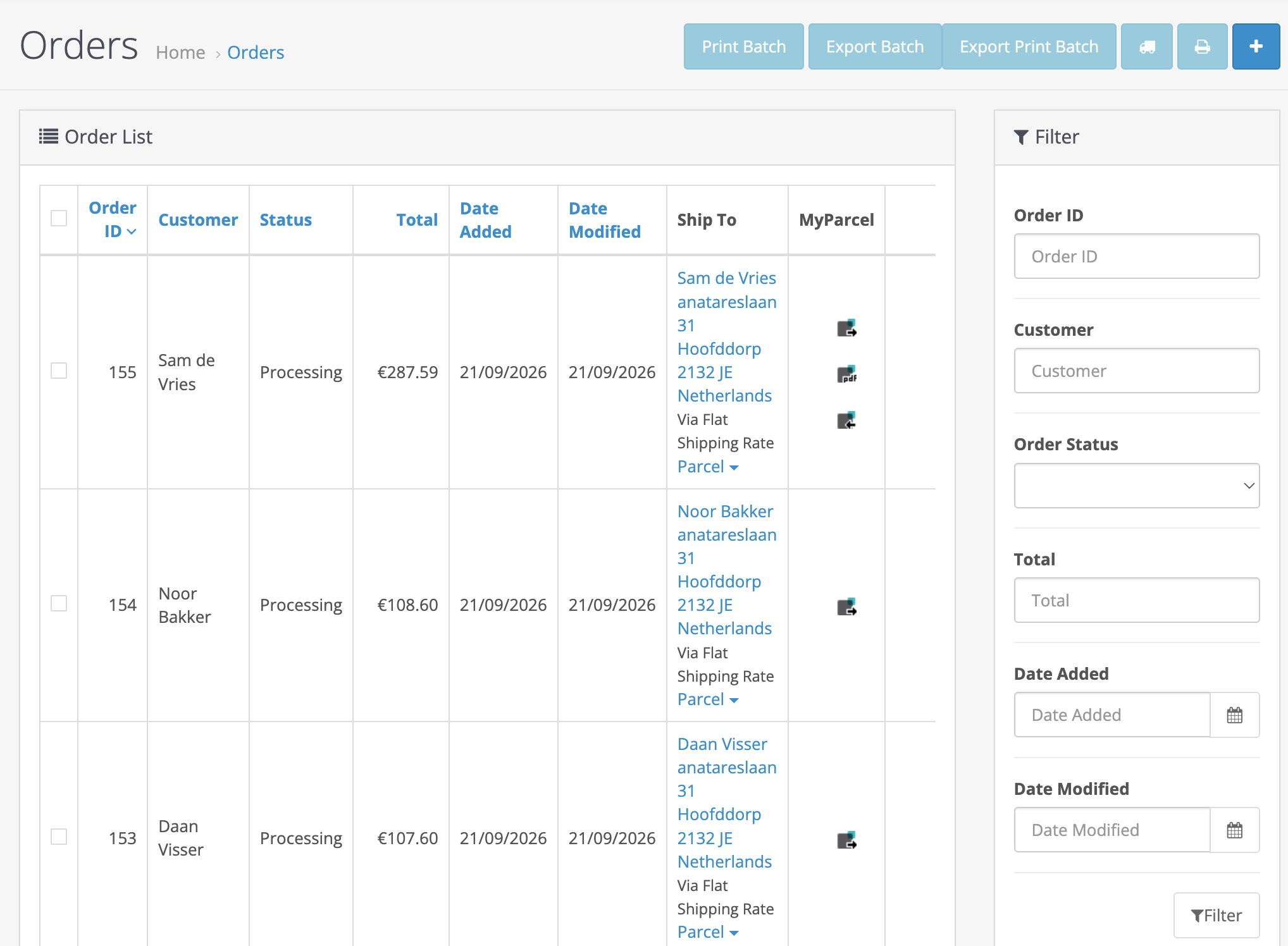
One order
- In the Ship To column, click the package type, for example Parcel, to check or change the shipment.
- In the MyParcel column, click Export to MyParcel.
- Click Print MyParcel label to download or open the label.
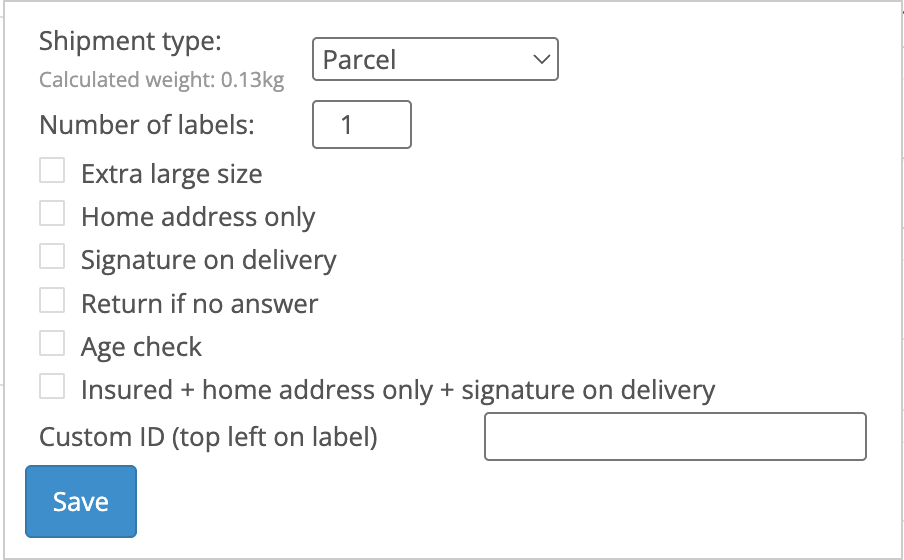
In the shipment window you can change, for this order only, the Shipment type, the Number of labels (several parcels for one order), the shipment options and a Custom ID printed at the top left of the label. Click Save.
Many orders at once
Tick the orders and use the buttons at the top of the order list:
- Export Batch sends the selected orders to MyParcel.
- Print Batch prints the labels of orders that were already exported.
- Export Print Batch does both in one go.
Return labels
The Email return label icon sends your customer an email with a link to print a return label.
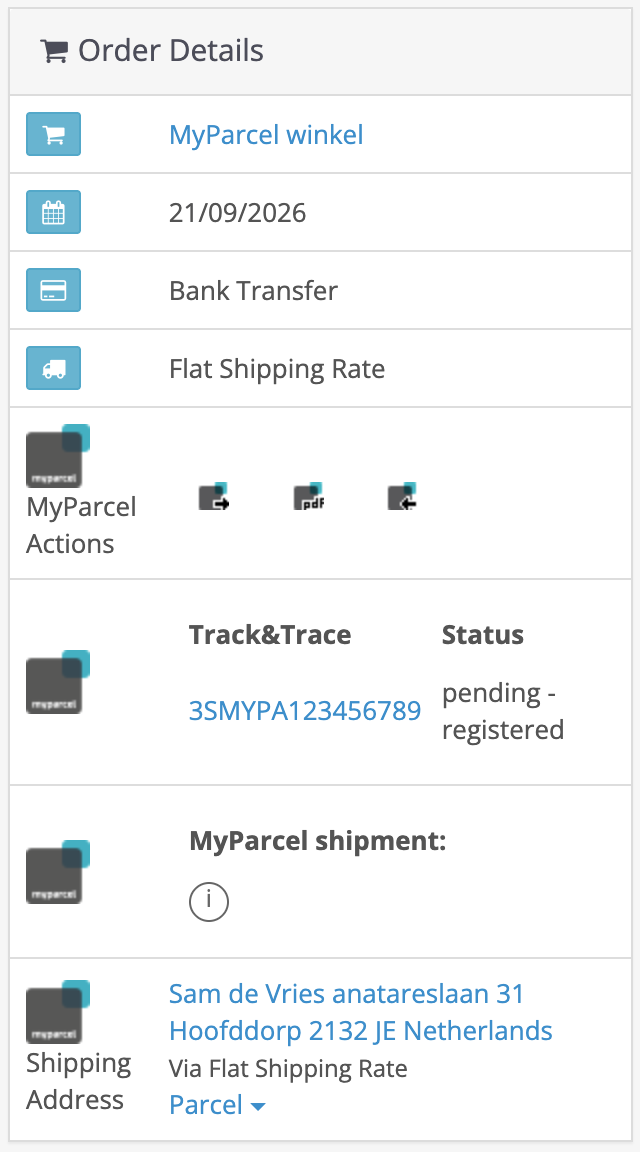
On the order itself
The order page shows the same MyParcel actions, the Track & Trace code with the shipment status, and the shipping address with the chosen package type.
You are only billed once a shipment is actually handed over to PostNL.
9 · Something's not working, diagnostics
Run through this table top to bottom, most issues are fixed within a few minutes.
| Symptom | What to check |
|---|---|
| The module does not show up under Modules | Did you click Refresh under Extensions → Modifications (§2)? Check your PHP version: the extension is tested up to PHP 8.2. |
| I only see Title and Cost | You opened the shipping method. The settings are under System → MyParcel (§2). |
| Saving fails with "Delivery day windows cannot be empty" | Fill in Delivery days window on the Checkout tab (§5). |
| No delivery options at checkout | Is Enable MyParcel delivery options ticked and is at least one option ticked (§5)? Are MyParcel Shipping and MyParcel Total installed and enabled (§2)? Did your customer enter a Dutch or Belgian address? |
| The surcharge is missing from the total | Is MyParcel Total installed and enabled under Order Total? |
| Export fails or gives an error | Is the API key right, without spaces (§3)? Switch on Log API communication, try again and download the log file for MyParcel support. |
| House number ends up in the wrong field | Change Use addition address as number suffix to match your checkout (§3). |
| My customer gets two Track & Trace emails | Switch off either Track&trace in email in OpenCart or the Track & Trace email in your MyParcel backoffice. |
| Export Print Batch does not show the labels | Use Export Batch first and then Print Batch. |
10 · FAQ
Should I still use this extension?
It works for shops that stay on OpenCart 3. MyParcel adds no new features and only fixes it when a change to the MyParcel API stops it from working. New development goes into the OpenCart 4 extension, which also supports more carriers.
Which carriers can I use?
PostNL only.
Where do I find my API key?
In backoffice.myparcel.nl under Shop settings → Integration.
Can I ship several parcels for one order?
Yes. Set the Number of labels in the shipment window before you export (§8).
Does the extension work with my one-page checkout or Journal theme?
The extension supports the default OpenCart checkout and adds support for some others, such as Journal and Xtensions Best Checkout. Test the checkout on a copy of your shop before going live.
When am I billed?
MyParcel bills a shipment once it is actually handed over to PostNL.
Resources & support
- backoffice.myparcel.nl ↗, account, API key, carriers and billing.
- MyParcel OpenCart 3 releases ↗, download the extension.
- Contact MyParcel support, 023 - 30 30 315 · info@myparcel.nl.