In short
Ecwid connects to MyParcel through the free MyParcel app from the Ecwid App Market. You enter your MyParcel API key once, and from then on every order that is set to Paid in Ecwid appears in your MyParcel backoffice as a draft shipment. You choose the carrier, package type and options and create the label there, not in Ecwid. The app has no other settings.
Quickstart, your first label in 10 minutes
Enough to ship your first order today. For the details, see Looking for… below.
- Account. Don't have a MyParcel account yet? Create one at myparcel.nl/register.
- Copy the API key. Log in to backoffice.myparcel.nl → Shop settings → Integration → copy the API key.
- Install the app. In your Ecwid admin go to Apps → App Market, search for MyParcel and install the free app.
- Paste the key. Open the app, paste the key in Fill in your MyParcel API key and click Connect.
- Print a label. Set an order to Paid, open Shipments in your MyParcel backoffice, check the draft shipment and create the label.
You're done when you see this
- The app shows a green Connected to status
- A paid Ecwid order appears as a draft shipment in your MyParcel backoffice
Looking for…
| What do you want to do? | Go to |
|---|---|
| Understand what the app does | 1 · How the connection works |
| Install the app | 2 · Installing the app |
| Connect your account | 3 · Connecting your MyParcel account |
| Know when an order is sent | 4 · When orders reach MyParcel |
| Set the carrier, package type and options | 5 · Shipment settings |
| Check what your customers see | 7 · The checkout experience |
| Print labels | 8 · Daily use |
| Something's not working | 9 · Something's not working, diagnostics |
| Answer to a frequently asked question | 10 · FAQ |
1 · How the connection works
The MyParcel app links your Ecwid store to one shop in your MyParcel account. It does one thing: as soon as an order is set to Paid, the app sends it to MyParcel, where it waits as a draft shipment. From there you work in your MyParcel backoffice: check the shipment, create the label and hand the parcel to the carrier.
The app does not add delivery options to your checkout, adds no settings to your products and does not show labels inside Ecwid.
Not the same as Buy Shipping Label
Ecwid's own Buy Shipping Label button on an order has nothing to do with MyParcel. To ship with your MyParcel rates, create the label in your MyParcel backoffice.
2 · Installing the app
- In your Ecwid admin, open Apps → App Market.
- Search for MyParcel and open the app by MyParcel. It is free.
- Click Install and accept the permissions the app asks for.
Your installed apps are listed under Apps → My Apps. Click Open app next to MyParcel to get to its page. Once installed, the app is also listed under Shipping & Pickup → MyParcel in the left-hand menu.

3 · Connecting your MyParcel account
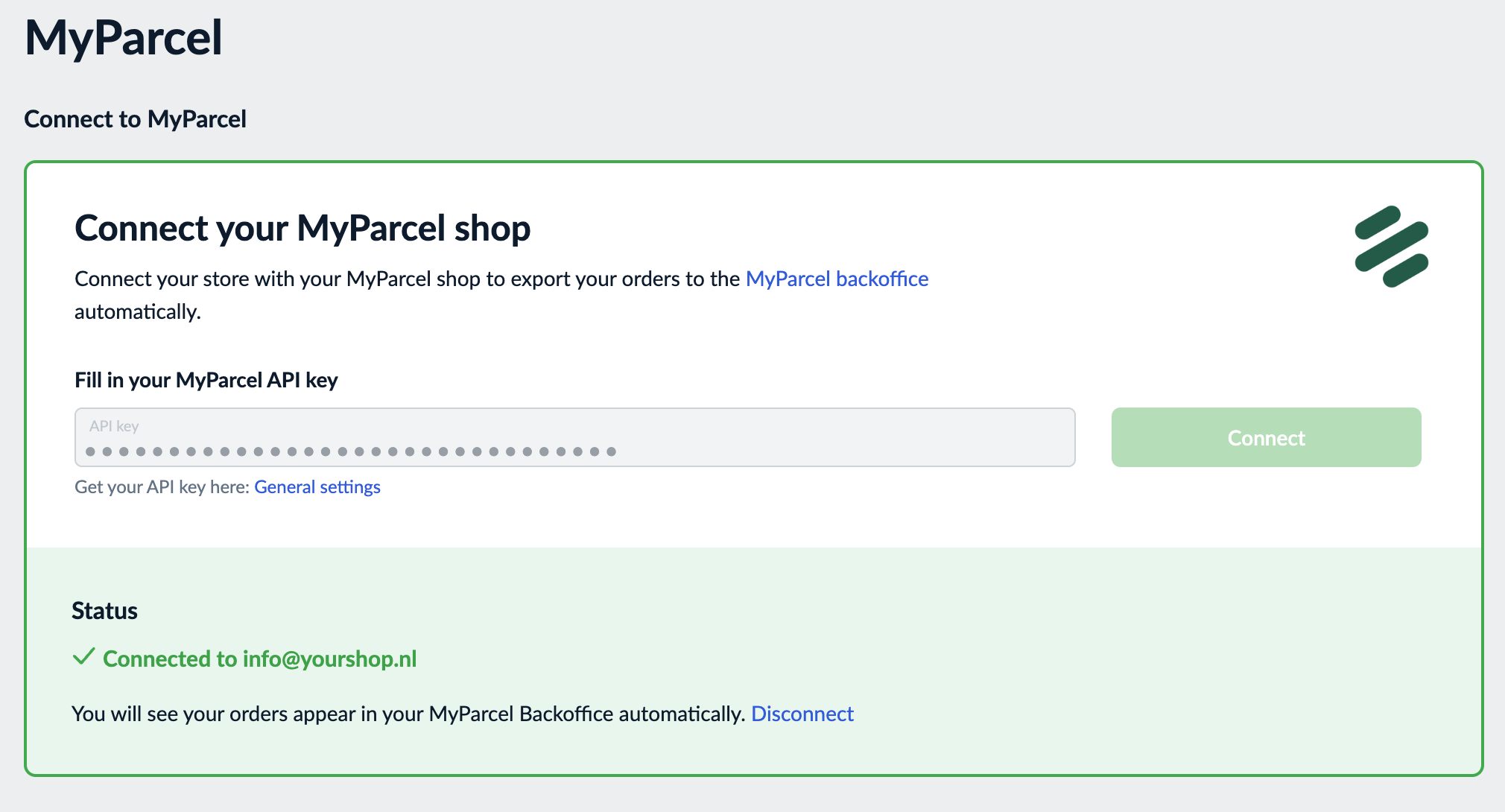
- Copy your API key from backoffice.myparcel.nl under Shop settings → Integration. The General settings link below the field takes you to your MyParcel backoffice as well.
- Paste it in Fill in your MyParcel API key. Watch out for spaces before or after the key.
- Click Connect.
When the key is accepted, the Status block turns green and says Connected to followed by your MyParcel account, with the line You will see your orders appear in your MyParcel Backoffice automatically. If the key is not accepted, the status says Not connected.
To use a different key, click Disconnect. The key is removed and you can enter a new one.
One key, one shop
The app links to one shop in your MyParcel account. If your account has more than one shop, use the API key of the shop where you want your Ecwid orders to arrive. All labels and invoices end up in that shop.
4 · When orders reach MyParcel
An order is sent to MyParcel at the moment its Payment Status changes to Paid. That happens automatically when your customer pays online. For an order paid another way, for example by bank transfer, set the status yourself: open the order and click Mark as Paid, or choose Paid in the Payment Status menu.
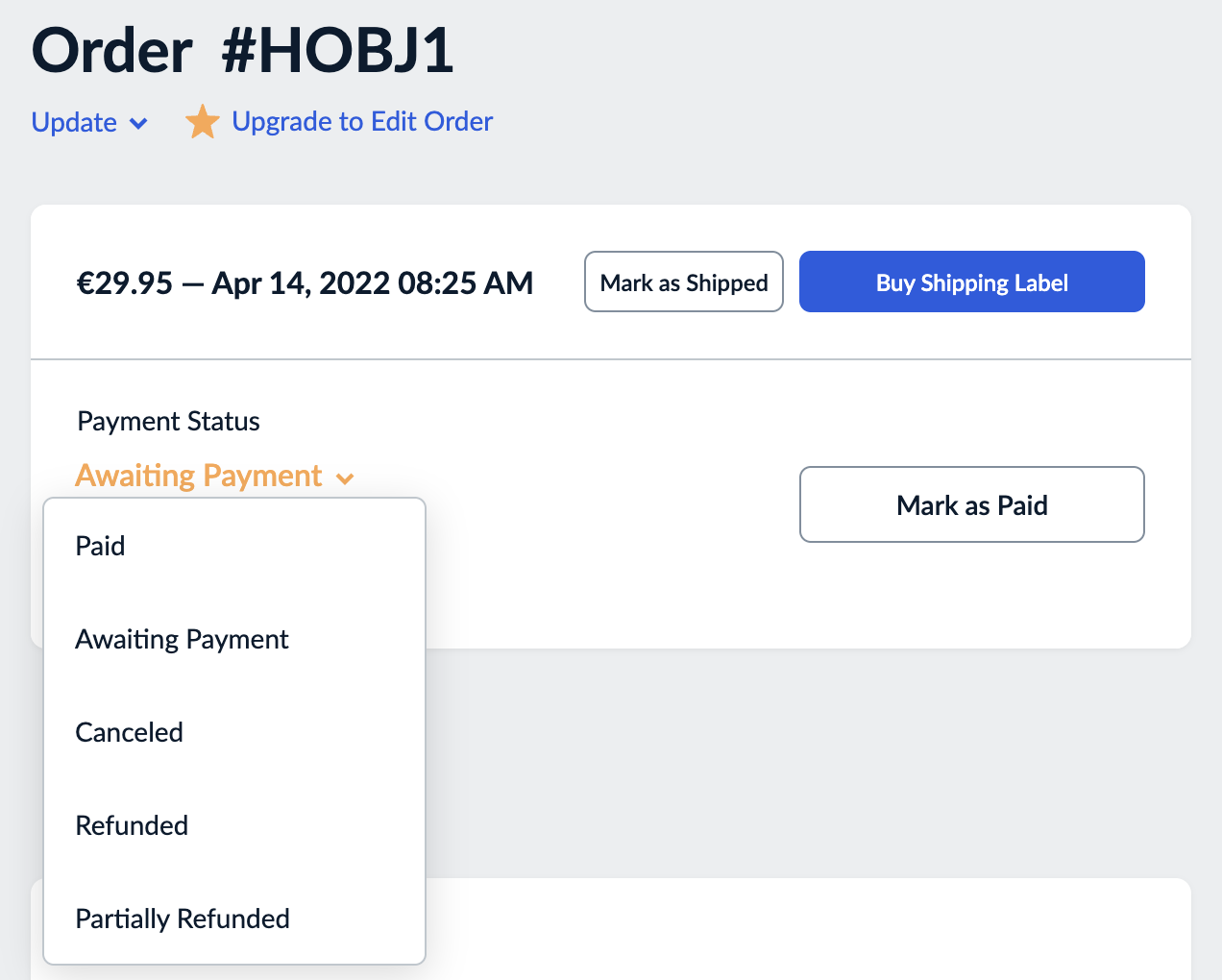
Orders that are still Awaiting Payment, or that are cancelled or refunded, are not sent.
5 · Shipment settings
The app itself has no shipment settings. Everything about the parcel is decided in your MyParcel backoffice:
- The defaults. Every draft shipment starts with the default carrier, package type and options of the shop the app is linked to. Set them in your MyParcel backoffice under Shop settings.
- Per shipment. Before you create a label you can change the carrier, package type, options and insurance on the draft shipment itself.
Which carriers and options you can choose depends on your MyParcel contract.
6 · Product settings
This app does not add product-level options. All shipping behaviour is controlled from your MyParcel backoffice.
7 · The checkout experience
The app does not change your Ecwid checkout. Your customers choose from the shipping methods you set up in Ecwid under Shipping & Pickup, such as a flat rate or free shipping. The method they choose is not carried over as a carrier or delivery option: you pick those yourself on the draft shipment in MyParcel.
8 · Daily use
- An order comes in and is set to Paid (§4).
- In your MyParcel backoffice, open Shipments. The order is there as a draft shipment.
- Check the address, the carrier, the package type and the weight. Click the pencil behind the shipment to change anything.
- Create the label, print it and hand the parcel to the carrier. You can do this for one shipment or select several and create the labels in one go.
The app does not write the Track & Trace code back to Ecwid. To let your customer follow the parcel, share the Track & Trace link from MyParcel, or add it to the order in Ecwid with Add tracking number.
You are only billed once a shipment is actually handed over to the carrier.
9 · Something's not working, diagnostics
Run through this table top to bottom, most issues are fixed within a few minutes.
| Symptom | What to check |
|---|---|
| The status says Not connected | Is the API key right, without spaces? Copy it again from your MyParcel backoffice and click Connect (§3). |
| A paid order does not appear in MyParcel | Was the order really set to Paid? To send it again, set the payment status back to Awaiting Payment and then to Paid (§4). |
| Orders arrive in the wrong MyParcel shop | The app is linked to the shop that belongs to the API key. Click Disconnect and connect with the key of the right shop (§3). |
| No orders arrive at all | Remove the app under Apps → My Apps, install it again and reconnect with your API key (§2). |
| The weight or value on the draft looks wrong | Check the weight of your products in Ecwid, and correct the draft shipment before you create the label (§8). |
10 · FAQ
Where do I find my API key?
In backoffice.myparcel.nl under Shop settings → Integration.
Where do I print labels?
In your MyParcel backoffice, under Shipments. Your Ecwid orders wait there as draft shipments.
Can I choose the carrier per order?
Yes, on the draft shipment in your MyParcel backoffice, before you create the label. The carriers you can choose depend on your MyParcel contract.
Can my customers choose a delivery day or pickup point at checkout?
No. The app does not add delivery options to the Ecwid checkout.
Can I set shipping options per product?
No. Set your defaults in your MyParcel backoffice and adjust a single shipment on the draft.
How do I connect a different MyParcel shop?
Click Disconnect on the app page and connect again with the API key of the other shop.
When am I billed?
MyParcel bills a shipment once it is actually handed over to the carrier.
Resources & support
- backoffice.myparcel.nl ↗, account, API key, carriers and billing.
- MyParcel in the Ecwid App Market ↗.
- Contact MyParcel support, 023 - 30 30 315 · info@myparcel.nl.
This manual describes the MyParcel app for Ecwid as it works in October 2026.