In short
Amazon connects to MyParcel through the MyParcel app in Amazon Seller Central. You authorise the app in Seller Central, log in to MyParcel and choose the MyParcel shop that receives your orders. MyParcel then creates an Amazon sales channel for that shop. From that moment your new Amazon orders appear in MyParcel by themselves. You ship them from your MyParcel backoffice. MyParcel sends the barcode and the carrier back to Amazon.
Quickstart, your first Amazon orders in 10 minutes
Enough to link Amazon to MyParcel today. For the details, see Looking for… below.
- Account. Don't have a MyParcel account yet? Create one at myparcel.nl/register. Turn on two-factor authentication in your MyParcel account before you start (§2).
- Find the app. Log in to Amazon Seller Central and open the Selling Partner Appstore ↗. Search for MyParcel.
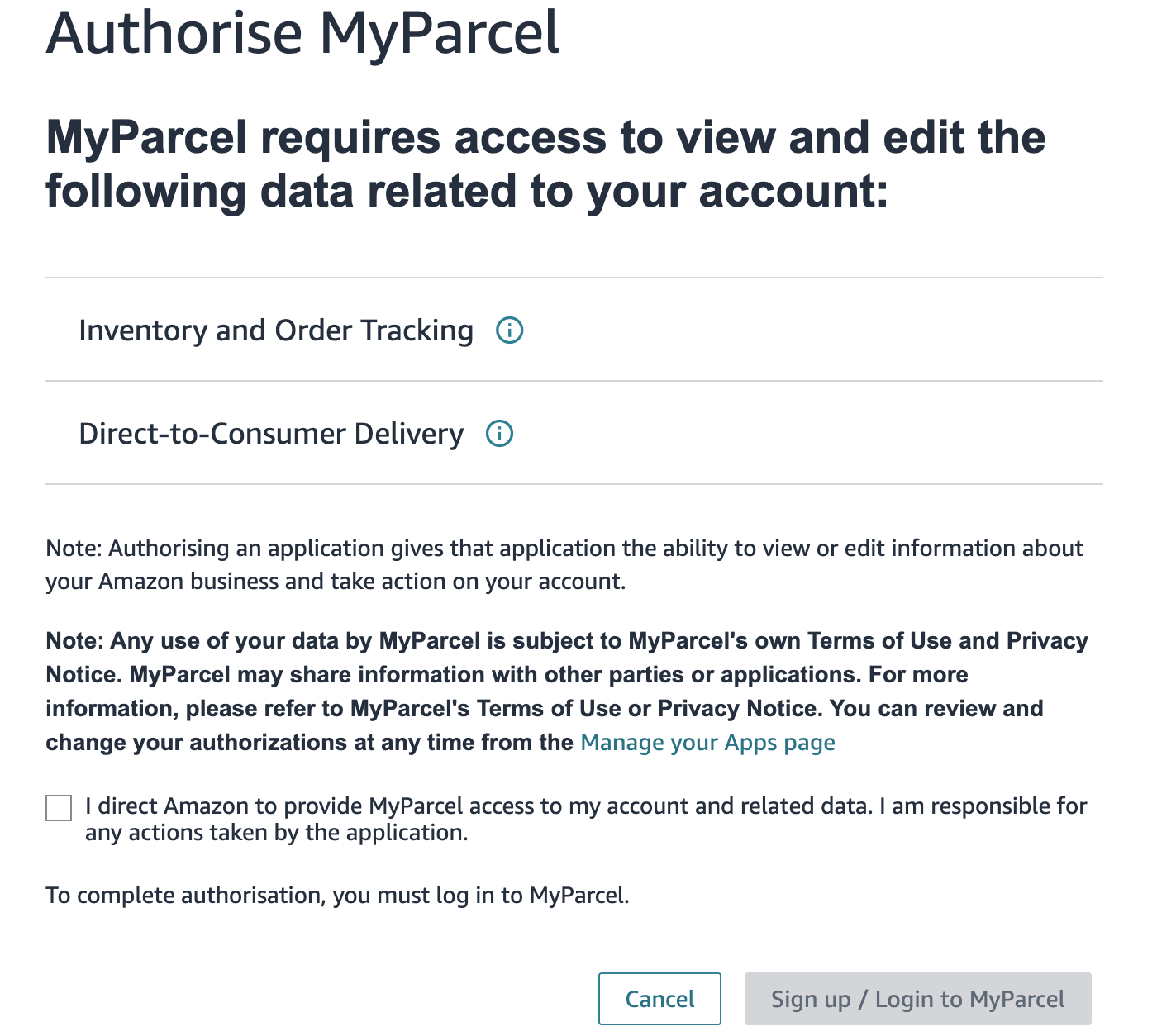
- Authorise the app. On the MyParcel app page, click Authorize Now. Tick the box to give MyParcel access and click Sign up / Login to MyParcel.
- Log in to MyParcel. Amazon sends you to MyParcel. Log in with your MyParcel account.
- Choose your shop. Select the MyParcel shop that receives your Amazon orders, tick the confirmation and click Approve and connect.
- Confirm at Amazon. Amazon asks you once more to confirm the access. Confirm it.
You're done when you see this
- The page Connection successful with the message Your Amazon store is now connected to MyParcel.
- An Amazon sales channel on your MyParcel shop
- MyParcel with the status Active under Manage Your Apps in Seller Central
- New unshipped Amazon orders in your MyParcel backoffice
Looking for…
| What do you want to do? | Go to |
|---|---|
| Understand how the connection works | 1 · How the connection works |
| Check what you need first | 2 · Before you start |
| Install the app and give access | 3 · Connecting Amazon step by step |
| Know what MyParcel may do with your account | 4 · What you allow |
| Ship your Amazon orders | 5 · Daily use |
| Connect again or disconnect | 6 · Reconnecting and disconnecting |
| Something's not working | 7 · Something's not working, diagnostics |
| Answer to a frequently asked question | 8 · FAQ |
1 · How the connection works
Amazon is a marketplace, so there is no plugin for your webshop. You connect from the Amazon side instead. You authorise the MyParcel app in Amazon Seller Central, and Amazon gives MyParcel access to your orders.
The connection is a sales channel on your MyParcel shop. You do not create it yourself in the backoffice: MyParcel creates it at the end of the connection flow, with the shop and the name you choose.
After that, the connection works by itself:
- When an Amazon order gets the status Unshipped, Amazon tells MyParcel. MyParcel fetches the order and puts it in your MyParcel backoffice.
- You ship the order from MyParcel.
- MyParcel sends the barcode and the carrier back to Amazon and confirms the shipment.
You do not need to download order reports or upload files.
2 · Before you start
Check these points before you connect. Each one stops the connection when it is missing.
| What you need | Why |
|---|---|
| An Amazon seller account with a Professional selling plan | Amazon only lets apps connect to accounts with a Professional plan. |
| A MyParcel account with order management | Your Amazon orders arrive as orders in MyParcel. Without order management, MyParcel shows Your MyParcel account does not support order management. Contact MyParcel support to turn it on. |
| Two-factor authentication on your MyParcel account | MyParcel only connects Amazon for accounts that use two-factor authentication. |
| Access to the MyParcel shop | You can only connect Amazon to a shop your MyParcel user has access to. |
To turn on two-factor authentication:
- Log in to backoffice.myparcel.nl.
- Click Account Settings.
- Go to Users & security.
- Under Security, turn on Two-factor authentication.
3 · Connecting Amazon step by step
Follow these steps in one go. On the MyParcel side you have 5 minutes for each step: to log in, and then to choose the shop. If it takes longer, start again from Seller Central.
Install the app in Seller Central
- Log in to Amazon Seller Central with the account of your Amazon shop.
- Open the Selling Partner Appstore ↗ and search for MyParcel. The app is by MyParcel and is free.
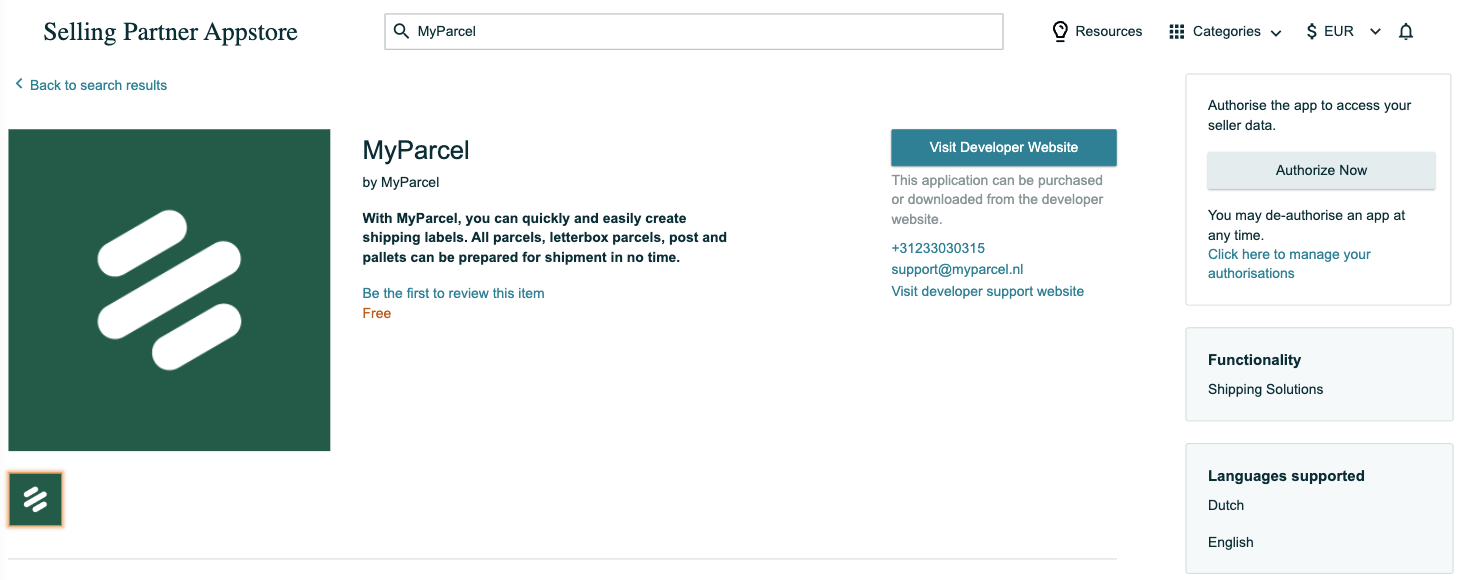
- On the app page, click Authorize Now. Have you connected before? Then go to Manage Your Apps and click Authorise next to MyParcel. If MyParcel still has the status Active, the button is Re-Authorise.

- Amazon shows the page Authorise MyParcel with the data MyParcel needs, see §4. Tick I direct Amazon to provide MyParcel access to my account and related data.
- Click Sign up / Login to MyParcel.
Log in to MyParcel
- Amazon sends you to MyParcel. Log in with your MyParcel account.
Choose the shop
- MyParcel shows the page Connect your Amazon account to MyParcel.
- Under Shop to connect, select the MyParcel shop that receives your Amazon orders.
- Under New sales channel name, fill in a name that helps you recognise the channel, for example Amazon NL. Use 3 to 50 characters, without a space at the start or the end.
- Read the permissions under What you allow, see §4.
- Tick I want to connect this Amazon account to the shop I selected.
- Click Approve and connect.
Only one shop?
If your MyParcel user has access to one shop only, MyParcel skips this page. The sales channel is then created on that shop with the name Amazon.
Confirm at Amazon
- MyParcel sends you back to Amazon. Amazon asks you once more to confirm the access. Confirm it.
- You see the page Connection successful. You can close the window.
Amazon asks for your consent twice: once before it sends you to MyParcel, and once after you choose the shop. Both steps are needed.
Cancel or Deny to stop
Do you want to stop? Click Cancel on the Amazon page, or Deny on the MyParcel page. On the MyParcel page you then see Connection cancelled. Nothing is connected.
4 · What you allow
On the Amazon page Authorise MyParcel, MyParcel asks for access to this data in your seller account:
- Inventory and Order Tracking
- Direct-to-Consumer Delivery
Click the information icon next to a role to see what Amazon includes in it.
On the MyParcel page you give MyParcel permission to:
| Permission | What MyParcel does with it |
|---|---|
| Read your Amazon orders and their details | Fetch each unshipped order with its items and the delivery address. |
| Create and update the matching orders in MyParcel | Put the Amazon order in your MyParcel shop and keep it up to date. |
To send the barcode back, MyParcel also confirms the shipment of the order at Amazon, see §5.
5 · Daily use
- A buyer orders on Amazon. When the order has the status Unshipped, it arrives in your MyParcel backoffice by itself.
- Open the order in your MyParcel backoffice and create the shipment and the label.
- Hand the parcel to the carrier.
When the order lines are shipped, MyParcel confirms the shipment at Amazon with the barcode and the carrier. Amazon then shows the order as shipped, with the tracking number.
Ship from MyParcel
Ship your Amazon orders from MyParcel. Then MyParcel can send the barcode and the carrier to Amazon.
MyParcel receives your orders from the moment you connect. Amazon tells MyParcel when an order changes to Unshipped. An order that was already unshipped before you connected does not arrive.
6 · Reconnecting and disconnecting
Connecting again
You can run the connection again at any time from Seller Central, for example after you have removed the app. If the Amazon account is already connected, MyParcel skips the shop page and uses the shop and the name of the existing sales channel.
One Amazon account connects to one MyParcel shop. If the Amazon account is already connected to a shop that your MyParcel user cannot access, the connection fails, see §7.
Disconnecting
You can end the connection in two places:
- In MyParcel. Remove the Amazon sales channel in your MyParcel backoffice.
- In Amazon. Go to Manage Your Apps in Seller Central and click Disable Authorisation next to MyParcel.
After you disconnect, new Amazon orders no longer arrive in MyParcel.
7 · Something's not working, diagnostics
Run through this table from top to bottom. MyParcel shows most messages on the page Connection failed. The two-factor message has its own page, Two-factor authentication required.
| Symptom | What to check |
|---|---|
| Two-factor authentication required | Turn on two-factor authentication in your MyParcel account (§2). Then close the window and start again from Seller Central. |
| Your MyParcel account does not support order management. | Your account does not have order management. Contact MyParcel support. |
| Your session has expired. | You took more than 5 minutes to log in to MyParcel or to choose the shop. Close the window and start again from Seller Central. |
| This Amazon account is already connected to a MyParcel shop that you do not have access to. | Log in to MyParcel with a user that has access to that shop, or ask the account owner to remove the existing Amazon sales channel first. |
| Amazon could not authorize this connection. | Amazon refused the authorisation. Close the window and start again from Seller Central. Check that you are logged in to Amazon with the right seller account. |
| We could not finish setting up order notifications. | Amazon did not accept the order notifications. Close the window and start again. Nothing was saved, so you can safely try again. |
| No Amazon orders arrive in MyParcel | Only orders with the status Unshipped arrive. Check the status in Seller Central. Check that MyParcel has the status Active under Manage Your Apps and that the sales channel is still on your shop (§6). |
| The barcode does not show up in Amazon | The barcode goes to Amazon when you ship the order from MyParcel. Check that you shipped the order in MyParcel (§5). |
8 · FAQ
Do I need to install anything?
You only install the MyParcel app in Amazon Seller Central. There is nothing to install in your webshop or on your computer.
Can I start the connection from the MyParcel backoffice?
No. The connection always starts in Amazon Seller Central. MyParcel creates the sales channel for you at the end of the flow.
Are orders imported automatically?
Yes. Every order that gets the status Unshipped arrives in MyParcel by itself. You do not need to click import or upload a file.
Do you send the barcode back to Amazon?
Yes. When you ship the order from MyParcel, MyParcel confirms the shipment at Amazon with the barcode and the carrier.
Can I connect more than one Amazon account?
Yes. Run the connection again from Seller Central with the other Amazon account. Each Amazon account gets its own sales channel.
Do I still need the order report from Seller Central?
No. The old way of connecting, where you downloaded the Unshipped orders report and uploaded it to MyParcel, is replaced by this app.
How do I stop the link?
Remove the Amazon sales channel in your MyParcel backoffice, or click Disable Authorisation next to MyParcel under Manage Your Apps in Seller Central (§6).
Resources & support
- backoffice.myparcel.nl ↗, sales channels, orders, account and billing.
- Selling Partner Appstore ↗, where you find the MyParcel app.
- Ship your Amazon orders with MyParcel ↗.
- Contact MyParcel support, 023 - 30 30 315 · info@myparcel.nl.
This manual describes the MyParcel app for Amazon as it works in October 2026. Screens on the Amazon side can differ slightly per account language and marketplace.