In short
The MyParcel Shipping app connects your Odoo database to MyParcel. You add one delivery method per carrier, choose the shipping options on the sales order, and when you validate the delivery Odoo creates the shipment at MyParcel and pulls back the label and Track & Trace. Everything runs from the standard Sales and Inventory screens, no code needed.
Quickstart, your first parcel in 15 minutes
Enough to ship your first real order today. For deeper configuration, see Looking for… below.
- Get your API key. Log in to backoffice.myparcel.com, go to Shop settings → Integrations and copy your API key.
- Install the app. In Odoo open Apps, search for MyParcel Shipping and click Activate.
- Add a delivery method. Go to Sales → Configuration → Delivery Methods → New. Give it a name, pick a Provider such as MyParcel - PostNL and set Integration Level to Get Rate and Create Shipment.
- Connect your account. Open the MyParcel Settings tab, choose your MyParcel Platform, paste your API Key, pick a Package Type and click MyParcel API CHECK.
- Ship an order. On a sales order click Add shipping, pick your MyParcel method, click Get rate and then Add. Confirm the order, open the delivery and click Validate.
You're done when you see this
- MyParcel API CHECK reports Connection Successful
- Your method appears in the Add shipping dialog with the MyParcel options below it
- After validating the delivery, Tracking Reference and Label URL are filled in on the Additional Info tab
Looking for…
| What do you want to do? | Go to |
|---|---|
| First-time setup | Quickstart |
| Install the app | 2 · Installing the app |
| Create a method per carrier | 3 · Creating a delivery method |
| Enter or test your API key | 4 · Settings · General and orders |
| Choose A4 or A6 labels | 5 · Settings · Labels |
| Decide how shipping is priced | 6 · Settings · Pricing |
| Set package type and insurance | 7 · Settings · Package type and insurance |
| Set the default options per carrier | 8 · Settings · Carrier options |
| See which options a carrier supports | 9 · What each carrier supports |
| Set customs data on products | 10 · Product settings |
| Change the options for one order | 11 · Shipping options per order |
| Print a label and find Track & Trace | 12 · The delivery, label and Track & Trace |
| Something isn't working | 14 · Something isn't working, diagnostics |
| Answer to a frequently asked question | 15 · FAQ |
1 · Preparing your MyParcel account
Before you start in Odoo, take care of three things in your MyParcel backoffice:
- Billing and return address, under Shop settings → General. This appears on every label.
- Activate your carriers, under Shop settings → Carriers. You can only ship with carriers that are active on your account.
- Copy your API key, under Shop settings → Integrations. You need one key per shop.
You also need an Odoo database with Inventory and Sales installed, and a user with administrator rights to reach the configuration screens.
2 · Installing the app
- Open Apps from the Odoo home screen.
- Search for MyParcel Shipping and click Activate.
- Odoo installs the app together with Inventory and the delivery features it needs.
The app adds a MyParcel Settings tab to your delivery methods, sales orders and deliveries, and it adds one package type per carrier.
Upgrading from the older module
If you previously ran the module called delivery_myparcel, the current app replaces it under the name delivery_myparcel_official. Follow the migration steps in the app's changelog before you install, so your existing delivery methods keep working.
3 · Creating a delivery method
You create one delivery method per carrier. A method named MyParcel PostNL ships with PostNL, a second method ships with DHL, and so on.
Go to Sales → Configuration → Delivery Methods and click New.

Fill in the top of the form:
| Field | What to set |
|---|---|
| Delivery Method | The name your team sees on orders, for example MyParcel PostNL. |
| Provider | The MyParcel carrier, for example MyParcel - PostNL. This choice decides which options appear further down. |
| Integration Level | Get Rate and Create Shipment. With Get Rate only, Odoo asks MyParcel for a price but never creates the shipment or the label. |
| Delivery Product | Leave this on MyParcel Package. This is the product Odoo adds to the order to charge shipping. |
| Invoicing Policy | Estimated cost charges the price shown on the order. Real cost charges what the shipment actually cost. |
You can pick which orders a method applies to on the Availability tab, by country, zip prefix, weight or volume. That is standard Odoo behaviour and works the same for MyParcel methods.
4 · Settings · General and orders
Open the MyParcel Settings tab on the delivery method.
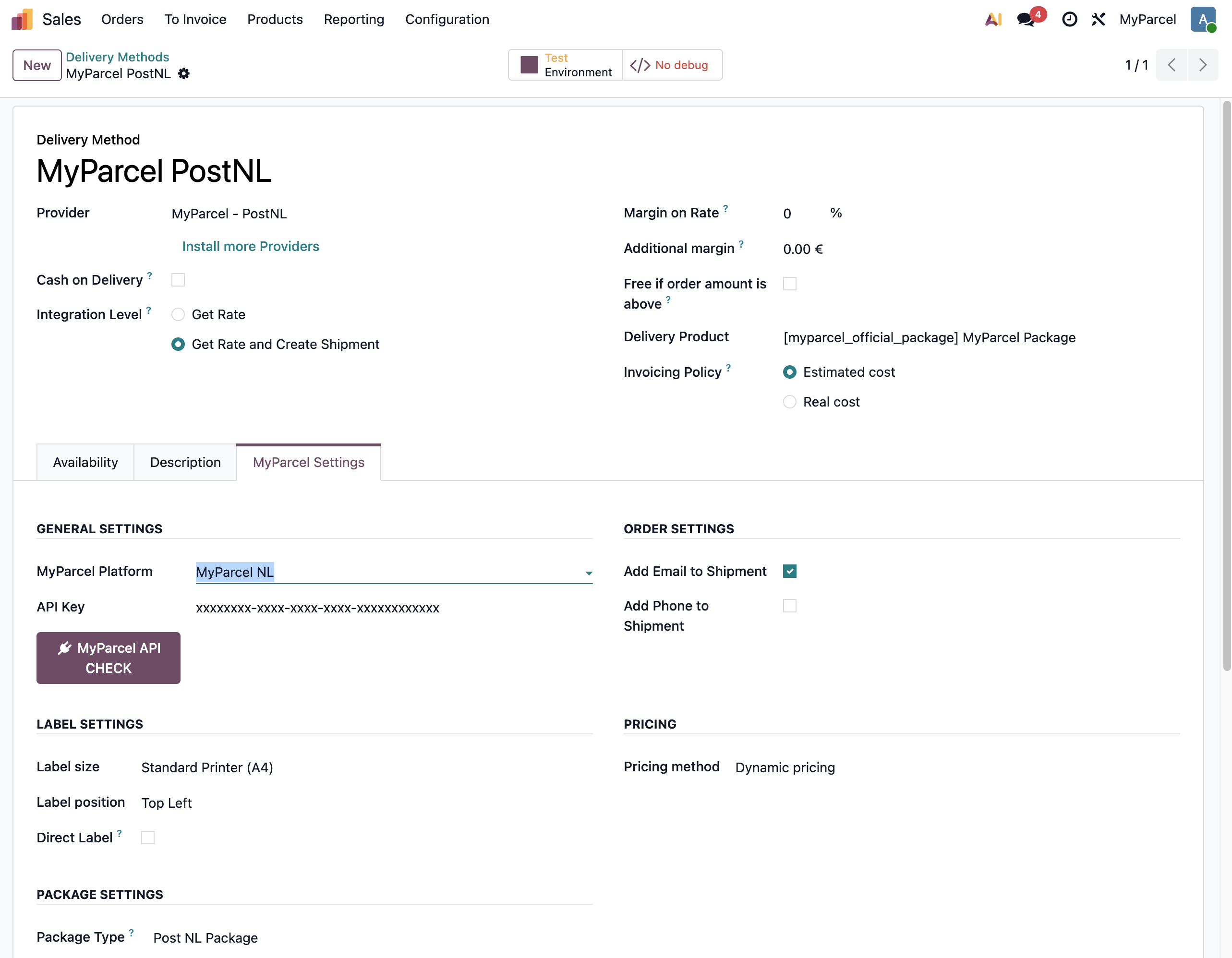
| Setting | What it does |
|---|---|
| MyParcel Platform | MyParcel NL for a myparcel.nl account, MyParcel BE for a SendMyParcel account. This also decides which shipping options you can use, some options are available on one platform only. |
| API Key | The key from your MyParcel backoffice. Paste it here and save. |
| MyParcel API CHECK | Tests the connection. Connection Successful means the key works, Connection Error means you need to check the key. |
| Add Email to Shipment | Sends the customer's email address along with the shipment so MyParcel can mail Track & Trace. Turn this on if you want your customer to be notified. The address then becomes mandatory on every order for this method. |
| Add Phone to Shipment | Sends the customer's phone number. Some carriers and delivery types need it. The number then becomes mandatory on every order for this method. |
Mandatory once you turn them on
Add Email to Shipment and Add Phone to Shipment make those fields required. An order without an email address or phone number then fails with a clear message when you try to ship it.
5 · Settings · Labels
| Setting | What it does | Recommended |
|---|---|---|
| Label size | Standard Printer (A4) puts up to four labels on an A4 sheet. Labelprinter (A6) prints one label per sticker. | A6 if you have a label printer |
| Label position | Which quarter of the A4 sheet the first label lands on, Top Left to Bottom Right. Only shown for A4. | Top Left |
| Direct Label | When this is on, Odoo fetches the label and the Track & Trace code the moment the shipment is created, and attaches the PDF to the delivery. When it is off, the shipment is created but you fetch the label yourself afterwards. | On |
6 · Settings · Pricing
| Setting | What it does |
|---|---|
| Pricing method | Dynamic pricing asks MyParcel what this exact shipment costs and puts that amount on the order. Fixed Price charges an amount you set yourself. |
| Fixed Price | The shipping price you charge. Only shown when Pricing method is Fixed Price. |
With Fixed Price you can also charge a surcharge per option. A price field appears next to each option you switch on in Carrier options, for example Age Verification Price (18+) or Signature Price, and those amounts are added to the fixed price.
How dynamic pricing works
To quote a real price, MyParcel briefly creates the shipment, reads its price and removes it again. Nothing is shipped and nothing is charged by that lookup.
7 · Settings · Package type and insurance
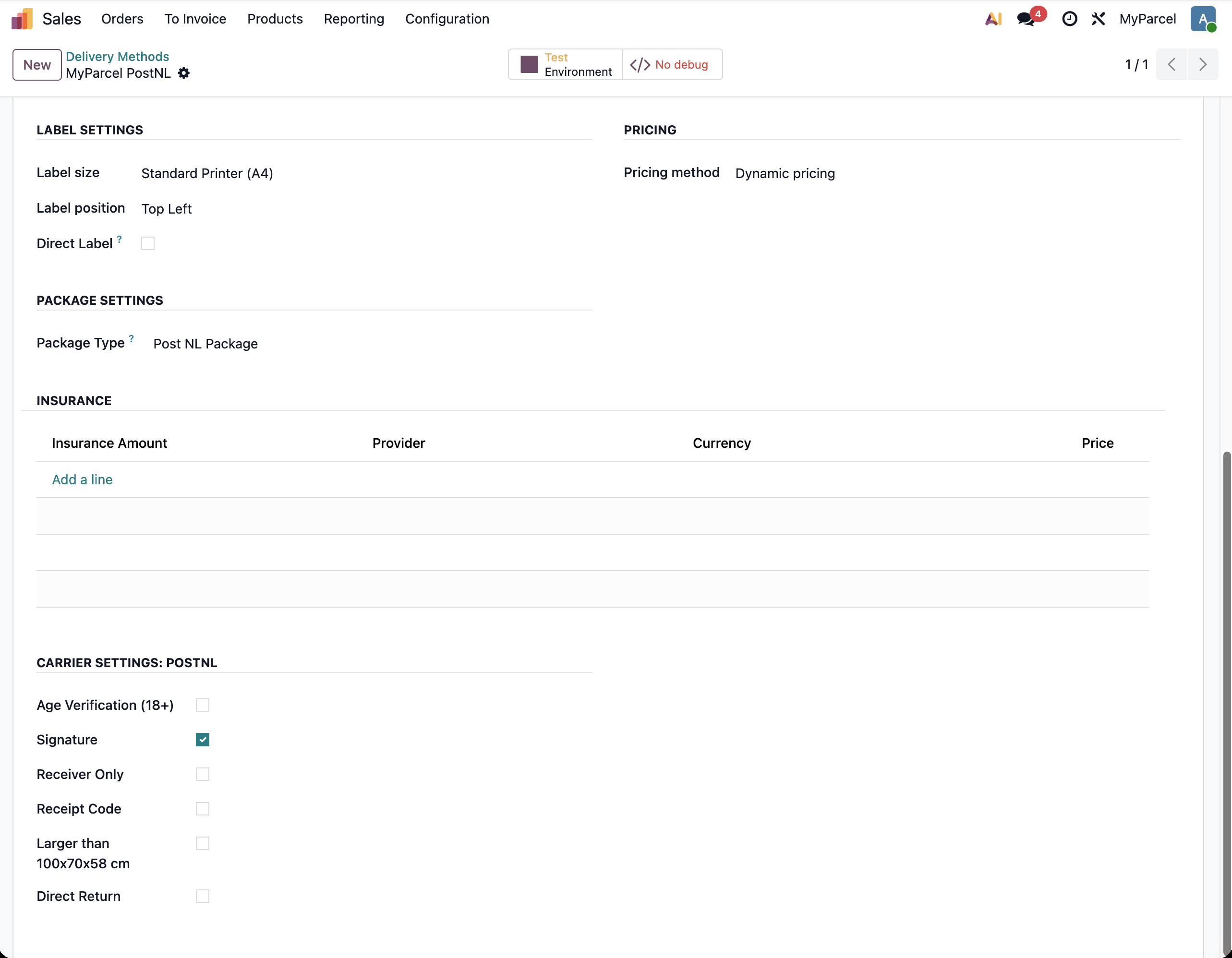
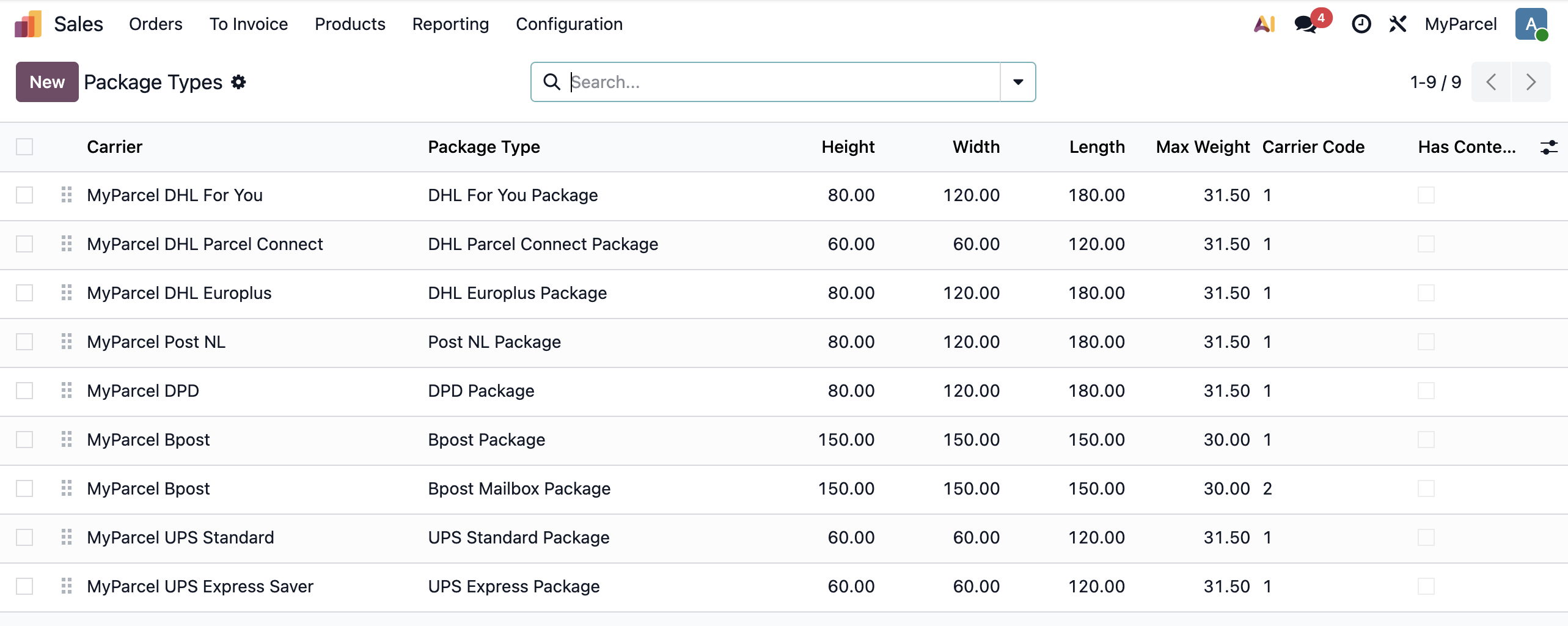
Package Type is required. Each carrier has its own package types, and the dropdown only offers the ones that belong to the provider you picked. You can see them all under Inventory → Configuration → Package Types.
Under Insurance you build your own price list. Add a line for each insured amount you want to offer, and set what you charge for it:
- Insurance Amount is the insured value in euros: 85, 100, 250, 500, 1000, 1500, 2000, 2500, 3000, 3500, 4000, 4500 or 5000.
- Price is what you charge the customer for that cover.
Leave the list empty if you do not offer insurance. Your team picks an amount from this list on the order itself.
8 · Settings · Carrier options
The bottom block, Carrier settings, sets the default options for every shipment sent with this method. Your team can still change them per order.
| Option | What it does |
|---|---|
| Age Verification (18+) | The carrier checks the recipient's ID and hands the parcel over only to someone aged 18 or over. Use it for alcohol, tobacco or other age-restricted goods. |
| Signature | The carrier asks for a signature on delivery. Useful for valuable orders. |
| Receiver Only | The parcel goes to the addressee only, not to a neighbour. |
| Receipt Code | The recipient needs a code to collect the parcel. PostNL only, for Dutch and Belgian addresses, and only in combination with insurance. |
| Larger than 100x70x58 cm | Marks the parcel as oversized. PostNL only, for European addresses. |
| Direct Return | Adds a return label so the customer can send the order back straight away. PostNL on MyParcel NL only. |
| Hide Sender | Leaves your details off the label, for example when you ship on behalf of someone else. DHL For You and DHL Europlus only. |
| Same-day Delivery | Offers same-day delivery. DHL For You only. |
Combinations PostNL does not allow
Receipt Code cannot be combined with Age Verification, Signature or Receiver Only, and it always needs insurance. Outside the Netherlands and Belgium, Signature also needs insurance. Odoo blocks the combination with a message before the shipment goes out.
9 · What each carrier supports
Not every carrier offers every option, and some options exist on one platform only. This is what you can use per carrier:
| Carrier | Age 18+ | Signature | Receiver Only | Receipt Code | Oversized | Direct Return | Hide Sender | Insurance |
|---|---|---|---|---|---|---|---|---|
| PostNL | NL only | yes | yes | NL and BE | EU only | NL only | no | yes |
| DHL For You | NL only | yes | yes | no | no | no | yes | yes |
| DHL Europlus | no | yes | no | no | no | no | yes | yes |
| DHL Parcel Connect | no | no | no | no | no | no | no | yes |
| DPD | no | no | no | no | no | no | no | no |
| Bpost | no | yes | no | no | no | no | no | no |
| UPS Standard | NL only | yes | yes | no | no | no | no | yes |
| UPS Express Saver | NL only | yes | yes | no | no | no | no | yes |
NL only means the option appears when MyParcel Platform is set to MyParcel NL. On a MyParcel BE method those options are hidden.
10 · Product settings
The app does not add MyParcel fields to the product screen. All shipping behaviour is controlled from the delivery method (see 4 · Settings · General and orders) and from the order itself.
Three standard Odoo product fields do matter, because MyParcel uses them:
| Field | Where | Why it matters |
|---|---|---|
| Weight | Product → Inventory tab | Decides the shipping price and which package type fits. Without a weight the app falls back to a minimum of 10 grams, which makes quotes unrealistic. |
| HS Code | Product → Accounting or Purchase tab | Required for shipments outside the EU. It must be 6, 8 or 10 digits, and 10 digits is a requirement for the United States. |
| Country of Origin | Next to the HS Code | Required for shipments outside the EU, it goes on the customs declaration. |
For orders inside the EU you can leave HS Code and Country of Origin empty.
11 · Shipping options per order
On a sales order, click Add shipping under the order totals. Pick your MyParcel method and the options for this shipment appear.
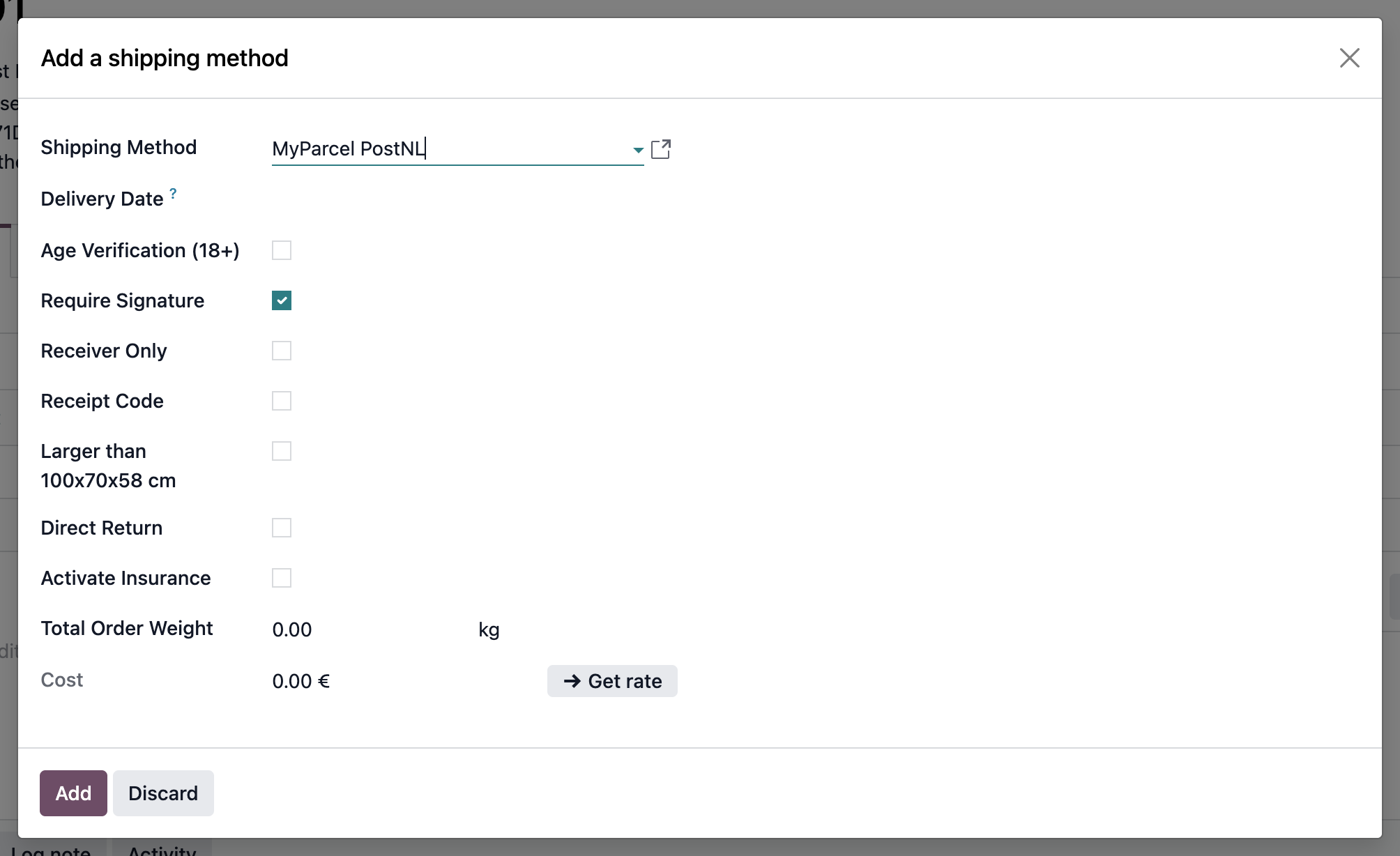
- Choose the Shipping Method. The option list changes to match the carrier.
- Set the Delivery Date. PostNL needs one, the other carriers do not.
- Tick the options you want for this order. They start from the defaults on the delivery method.
- Tick Activate Insurance and pick an amount if you want the parcel insured.
- Click Get rate to fetch the real price, then Add to put the shipping line on the order.
Once the method is on the order, a MyParcel Settings tab shows what was chosen. It is read-only, use Update shipping cost or remove the shipping line if you need to change something.
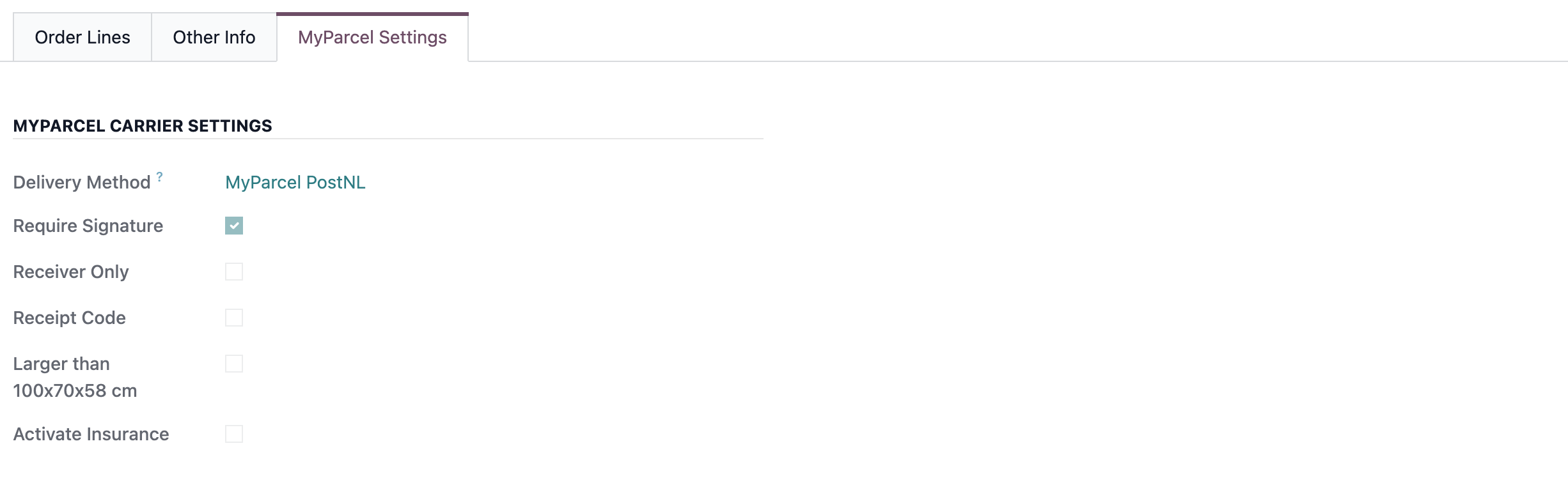
Adding shipping without a price
If you click Add without fetching a rate, Odoo asks whether the delivery should really be free. That is fine when you charge a fixed price or ship free of charge, the shipment itself is still created normally.
12 · The delivery, label and Track & Trace
Confirming the sales order creates a delivery. Open it from the Delivery button on the order.
Everything MyParcel-related sits on the Additional Info tab, under MyParcel Settings. You can still change the options here, right up to the moment you validate.
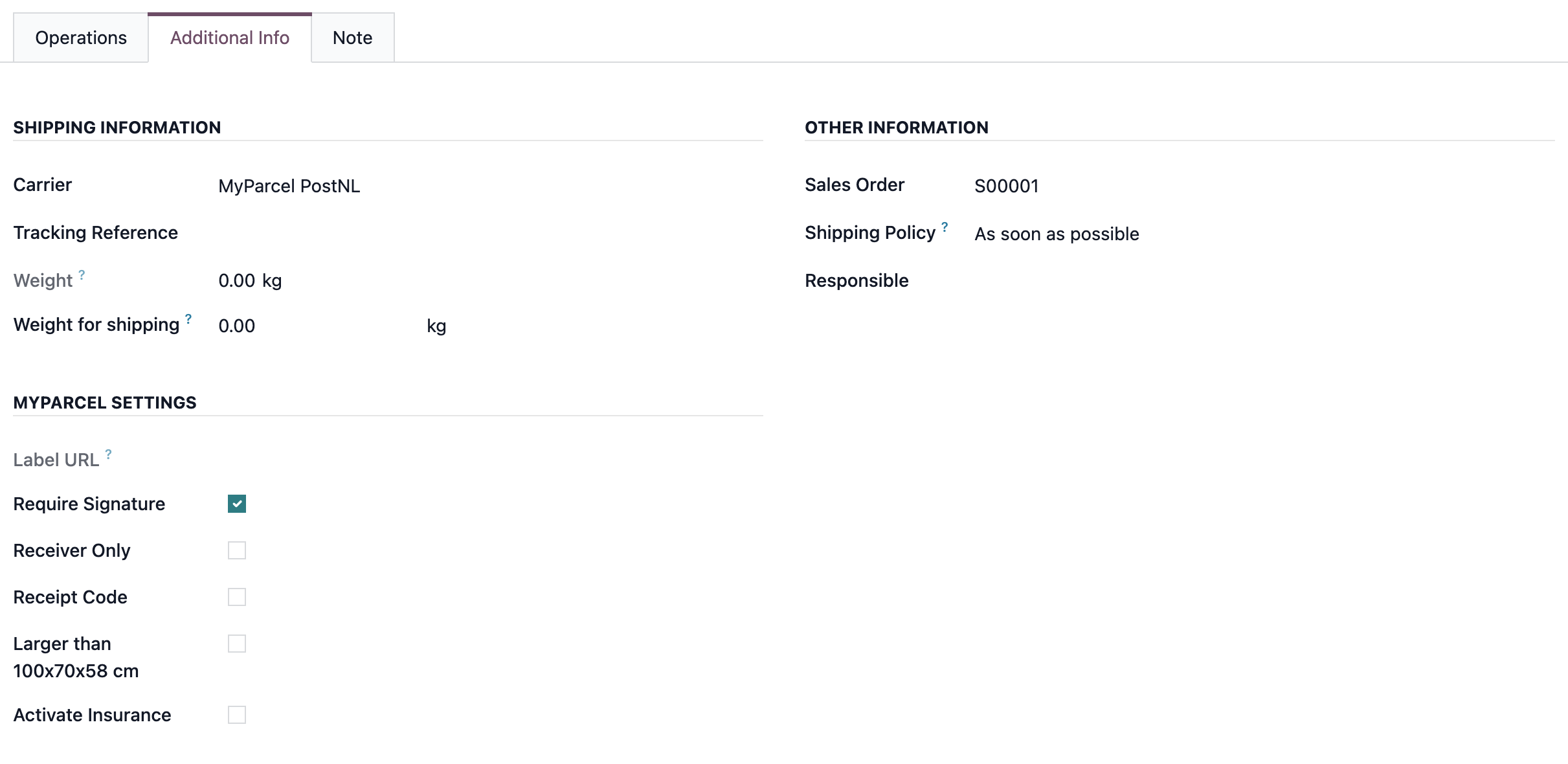
Click Validate when the parcel is packed. Odoo then:
- Creates the shipment at MyParcel with the options from this delivery.
- Fetches the PDF label and attaches it to the delivery as
LabelMyParcel.pdf, if Direct Label is on. - Fills in Tracking Reference and Label URL, and stores the Track & Trace link.
Your customer's Track & Trace page lives at myparcel.me/track-trace, and Odoo builds the link from the barcode, the postcode and the country.
More than one parcel for a PostNL order
PostNL supports multi-collo. When one shipment is split into several parcels, Odoo adds up the prices of all of them and keeps the labels together on the same delivery.
13 · Daily use
A typical shipping day:
- Open Sales → Orders and confirm the orders you are going to ship.
- Check the delivery method and options on each order, and adjust them where a customer asked for something specific.
- Open Inventory → Delivery Orders, pack the goods and use Put in Pack if you ship more than one parcel.
- Click Validate. The shipment is created and the label is attached.
- Print the labels from the attachment on each delivery and hand the parcels to the carrier.
14 · Something isn't working, diagnostics
| Symptom | Likely cause and fix |
|---|---|
| Toegang geweigerd / Access Denied | The API key is wrong, expired, or belongs to a different MyParcel account. Re-copy it from Shop settings → Integrations and test with MyParcel API CHECK. |
| MyParcel API CHECK says Connection Error | Same cause as above. Check that you pasted the whole key without spaces. |
| Street number not found in street field | The house number must sit at the end of the Street field, or in Street 2 for non-Belgian addresses. Fix the delivery address on the contact. |
| State is required for creating a shipment | Odoo asks for a state or region on every address outside Belgium. Fill in the state on the contact. |
| City / Postal code / Recipient name is required | The delivery address is incomplete. Complete it on the contact, not just on the order. |
| Email address is required | Add Email to Shipment is on for this method, but the contact has no email address. Add one, or switch the setting off. |
| Phone number is required | Same, for Add Phone to Shipment. |
| Invalid email address provided | The contact's email address is malformed. Correct it on the contact. |
| The HS Code does not have the correct amount of digits | HS codes must be 6, 8 or 10 digits, and 10 digits is a requirement for the United States. Correct it on the product. |
| No country of origin found for this product | Set Country of Origin on every product in a shipment leaving the EU. |
| Package type needed for MyParcel carriers | Package Type is empty on the delivery method. Pick one on the MyParcel Settings tab. |
| Receipt code can not be selected with any other option | Receipt Code only works on its own, and only together with insurance. Clear the other options. |
| This delivery method is not available as no shipment ID was found | The address or the chosen combination of options was rejected by MyParcel. Check the delivery address and switch options off one by one. |
| A new method asks for MyParcel fields it should not need | A non-MyParcel delivery method can ask for MyParcel fields. Pick the provider first, then fill in the rest of the form. |
15 · FAQ
Do I need a delivery method per carrier? Yes. Each method carries one provider, its own package type and its own default options. Create one for every carrier you ship with.
Where do I find my API key? In your MyParcel backoffice under Shop settings → Integrations. Use the key of the shop you want to ship from.
What is the difference between MyParcel NL and MyParcel BE?MyParcel NL is for myparcel.nl accounts, MyParcel BE for SendMyParcel accounts. The platform decides which carriers and which options you can use, Age Verification and Direct Return are available on MyParcel NL only.
Does Get rate already create a shipment? It creates one briefly to read the real price, then removes it again. Nothing is shipped and nothing is charged by the lookup itself.
Can my customers choose a delivery moment or a pickup point themselves? Not in this version. Delivery options are set by your team on the order, not by the customer during checkout.
Can I send my customer a return label? Not automatically. Direct Return adds a return label to a PostNL shipment on MyParcel NL, which you can include with the parcel.
Which carriers can I use? PostNL, DHL For You, DHL Parcel Connect, DHL Europlus, DPD, Bpost, UPS Standard and UPS Express Saver. Only carriers that are active on your MyParcel account will actually accept shipments.
Why is my shipping price 0.00? You added the shipping method without fetching a rate, or the rate lookup failed. Use Update shipping cost on the order to try again.
Resources & support
- backoffice.myparcel.com ↗, your account, API key and carriers.
- myparcel.nl/contact ↗, support for your MyParcel account.
- This manual covers the MyParcel Shipping app for Odoo 19, version
19.0.0.5.0.