In short
bol connects to MyParcel through a Sales channel you create in the MyParcel backoffice, there is nothing to install. You authorise MyParcel once in your bol sales account, after which MyParcel imports your open bol orders, returns the Track & Trace barcode and carrier, and sets the bol order to shipped. Since 22 September 2026 you no longer grant access to the whole bol API: you authorise per API component and per permission. The components MyParcel uses are ticked for you, so leave that preselection as it is.
Quickstart, your first bol orders in 10 minutes
Enough to link bol to MyParcel today. For the details, see Looking for… below.
- Account. Don't have a MyParcel account yet? Create one at myparcel.nl/register.
- Add the sales channel. In backoffice.myparcel.nl go to Shop settings → Sales Channels → Add sales channel → choose bol → enter a name → Save.
- Start the authorisation from MyParcel. Open the new channel and start the authorisation there. Never start it from bol.
- Log in at bol on the page MyParcel sends you to and select the bol account you want to link.
- Leave the preselection alone. Check the preselected API components and their permissions, change nothing, and click Toestaan (Allow).
- Choose how to import. Back in MyParcel, set the import to manual or automatic and save.
You're done when you see this
- The channel no longer asks for authorisation and shows the linked bol account.
- MyParcel appears under Authorized parties in your bol sales account, with an expiry date.
- The button Import external orders appears in your MyParcel Shipments overview.
Looking for…
| What do you want to do? | Go to |
|---|---|
| Understand how the connection works | 1 · How the connection works |
| Know what changed in the bol authorisation | 2 · What changed in the bol authorisation |
| Create the sales channel | 3 · Creating the bol sales channel |
| Authorise the connection | 4 · Authorising the connection step by step |
| Look up the components to tick | 5 · Which API components MyParcel needs |
| Check or renew your authorisation | 6 · Checking and renewing your authorisation |
| Import orders manually or automatically | 7 · Import settings |
| Set the package type for imported orders | 8 · Shipping rules |
| Process orders day to day | 9 · Daily use |
| Something's not working | 10 · Something's not working, diagnostics |
| Answer to a frequently asked question | 11 · FAQ |
1 · How the connection works
bol is a marketplace, not a webshop platform, so there is no plugin or app. You register your bol sales account once as a Sales channel in the MyParcel backoffice and authorise MyParcel in your bol account. From then on MyParcel talks to the bol Retailer API on your behalf.
MyParcel pulls your open bol orders and imports them as draft shipments. You create the labels in your MyParcel backoffice, and MyParcel writes the Track & Trace barcode and the carrier back to bol and sets the order to shipped.
Don't set orders to shipped in bol yourself
MyParcel can only update an order that is still open. If you have already marked the shipment as shipped in bol by hand, the barcode and carrier are not written back.
2 · What changed in the bol authorisation
bol has changed how it asks for permission. For MyParcel customers this applies from 22 September 2026.
- You authorise per component, not per API. Instead of granting access to the whole bol API in one go, you grant access per API component (resource) and per permission: read or manage.
- It applies to new and renewed connections. Every new SSO connection and every SSO connection you renew uses the new screen. Connections made before this date keep working until their expiry date.
- You only see what MyParcel uses. bol divides its API into 5 main scopes: Assortimentbeheer, Logistiek, Inzichten, Financiën and Subscriptions. The screen only shows the components your integration partner actually uses, and those are ticked for you. Leave that preselection as it is.
Unticking breaks the connection
If you untick a component MyParcel needs, the connection stops working. bol refuses every call for which the permission is missing, with a 403 Forbidden. You cannot add a permission afterwards: to correct it you have to run the whole authorisation again.
Connections made with Client Credentials are not affected yet. bol expects to apply the same change there in Q4 2026 and will announce it on the partner platform.
3 · Creating the bol sales channel
- Log in to backoffice.myparcel.nl and go to Shop settings → Sales Channels.
- Click Add sales channel (top right).
- Fill in a Name that helps you recognise the channel, for example My bol shop.
- Under Type of sales channel, choose bol.
- Click Save. The channel is created and still needs to be authorised, see §4.
One bol account per shop
You link one bol account to one MyParcel shop. Do you sell through several bol accounts? Create an extra MyParcel shop for each one.
4 · Authorising the connection step by step
Follow these 6 steps to create a new connection or to renew an existing one.
- Start from MyParcel. Open the bol sales channel in your MyParcel backoffice and start the authorisation there. Do not start it from bol, MyParcel has to be the party asking.
- Log in at bol. MyParcel sends you to the bol login page. Log in with the account that owns your bol sales account.
- Select the right bol account. Under Kies de retailer die je wilt koppelen (Choose the retailer you want to link), pick the account you want to connect to MyParcel.
- Check the preselected components. The components MyParcel uses are ticked for you. If you are unsure, tick nothing extra and untick nothing.
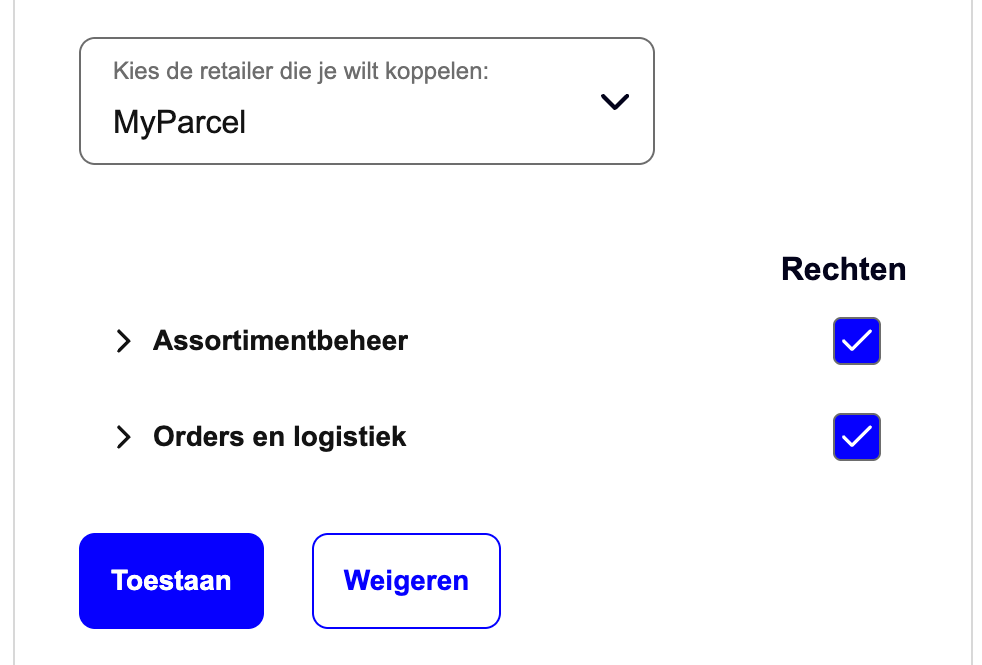
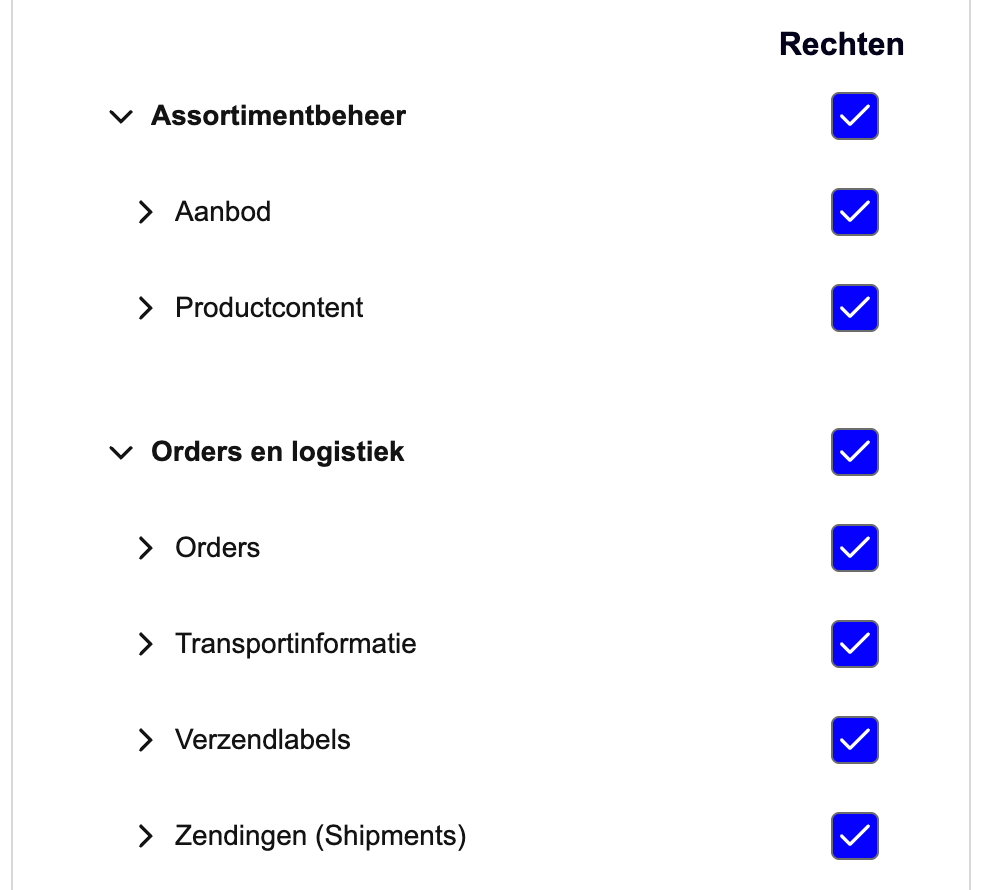
- Check the permissions per component. Click the arrow in front of a group to expand it and see the individual components and their permissions: read, to fetch data, or manage, to create, change and delete it as well. Compare them with §5. The information icon behind a component explains what it covers.
- Save and check. Click Toestaan (Allow) to save the authorisation. You return to MyParcel. Import an order to confirm the connection works, see §9.
5 · Which API components MyParcel needs
These are the bol Retailer API components the MyParcel connection uses. All other components are off by default and are not needed.
| API component | Shown in bol as | Permissions |
|---|---|---|
| Assortment Management → Offers | Assortimentbeheer → Aanbod | Read and Read and Write |
| Assortment Management → Product Content | Assortimentbeheer → Productcontent | Read |
| Orders and logistics → Orders | Orders en logistiek → Orders | Read and Read and Write |
| Orders and logistics → Shipments | Orders en logistiek → Zendingen | Read and Read and Write |
| Orders and logistics → Shipping labels | Orders en logistiek → Verzendlabels | Read and Read and Write |
| Orders and logistics → Transport Information | Orders en logistiek → Transportinformatie | Read and Write |
The names bol shows depend on the language of your bol account. The English names are the ones bol uses in the Retailer API documentation.
6 · Checking and renewing your authorisation
Every authorisation has an expiry date. You check both in your bol sales account under Instellingen → Diensten → API-instellingen → Authorized parties (Settings → Services → API settings). MyParcel is listed there with its expiry date once the connection is live.
- Renew in time. Renew within 2 months before the expiry date, so the connection never stops on a shipping day.
- Renewing is the same flow. Start from MyParcel and run through the 6 steps in §4. Because this is a renewal, you get the new authorisation screen with the components and permissions.
- Existing connections keep working. A connection made before 22 September 2026 runs until its expiry date, at which point you renew it the new way.
7 · Import settings
Open the bol sales channel in your MyParcel backoffice to choose how orders come in.
- Handmatig (Manual), you fetch your open bol orders yourself, see §9.
- Automatisch (Automatic), MyParcel fetches new open orders every 5 minutes.
Don't forget to save
Click Save after changing the import setting, otherwise the change is not applied.
With automatic import switched on you can still fetch orders by hand whenever you want.
8 · Shipping rules
Imported bol orders follow the shipping rules on your MyParcel account, so set those before your first import. Go to Shop settings → Shipments → Shipping rules and choose a default package type plus any delivery options.
Every import uses these rules. You cannot give a package preference per order at import time, but you can change a shipment afterwards, see §9.
9 · Daily use
Once the channel is authorised, the button Import external orders appears in your Shipments overview.
- Click Import external orders to see your open bol orders. Several external connections? Switch between them with the tabs.
- Import orders one by one or in bulk.
- Imported orders arrive as draft shipments. Click the pencil behind a shipment to edit it.
- Create the labels and hand the parcels to the carrier. MyParcel writes the barcode and carrier back to bol and sets the order to shipped.
Edit in MyParcel, not in bol
Do not change an order in the bol portal before you import it. The order details can then come in wrong, and the barcode is not written back to bol when you process the shipment.
You are only billed once a shipment is actually handed over to the carrier.
10 · Something's not working, diagnostics
Run through this table top to bottom, most issues are fixed within a few minutes.
| Symptom | What to check |
|---|---|
| The channel keeps asking for authorisation | The authorisation was not completed. Start it again from MyParcel and finish with Toestaan (§4). |
| No orders are imported | Are there open orders in bol? Check that the connection is still listed under Authorized parties in your bol account and has not expired (§6). |
| Orders come in, but the barcode is not written back | The order was set to shipped in bol by hand. MyParcel can only update orders that are still open (§1). |
| Part of the connection stopped working | A component was unticked during the authorisation, so bol refuses those calls with a 403 Forbidden. Compare your permissions with §5 and run the authorisation again, you cannot add a permission afterwards. |
| The connection stopped on a fixed date | The authorisation expired. Renew it and check the expiry date under Authorized parties (§6). |
| You selected the wrong bol account | Run the authorisation again from MyParcel and select the right retailer in step 3 (§4). |
| Wrong package type on imported orders | Imported orders follow your shipping rules. Adjust them in Shop settings → Shipments → Shipping rules (§8), or change the shipment before processing. |
11 · FAQ
Do I have to redo the authorisation right now?
No. A connection made before 22 September 2026 keeps working until its expiry date. You get the new screen the first time you create or renew a connection after that date.
What happens if I untick a component?
The parts of the connection that need it stop working. You cannot add a permission afterwards, so run the whole authorisation again from MyParcel and leave the preselection alone (§4).
Does this also apply to Client Credentials?
Not yet. Connections made with Client Credentials are still outside this change. bol expects to apply it there in Q4 2026 as well and will announce it on the partner platform.
Where do I see which parties have access to my bol account?
In your bol sales account under Instellingen → Diensten → API-instellingen → Authorized parties. You also find the expiry date of every authorisation there (§6).
Can I withdraw the permission again?
Yes. Open the bol sales channel in your MyParcel backoffice and withdraw the permission there. You can also remove MyParcel under Authorized parties in your bol account.
How often do you fetch new orders?
With automatic import on, every 5 minutes. You can always fetch orders by hand as well (§7).
Can I link several bol accounts to MyParcel?
You link one bol account to one MyParcel shop. Create an extra shop for an extra bol account.
Do you send the barcode back to bol?
Yes. After the label is created, MyParcel writes the barcode and the carrier back to bol and sets the order to shipped.
Can I set a package preference per order before importing?
No. Every import uses your shipping rules (§8). Change the shipment after importing if a parcel needs something different.
Resources & support
- backoffice.myparcel.nl ↗, sales channels, shipping rules, account, billing.
- bol partner platform ↗, MyParcel on the bol partner platform.
- The renewed bol authorisation ↗, bol's own step-by-step guide for creating and renewing a connection.
- Improved API authorization for SSO integrations ↗, the announcement for developers.
- Contact MyParcel support, 023 - 30 30 315 · info@myparcel.nl.
This manual describes the bol sales channel in the MyParcel backoffice and the bol authorisation as it works from 22 September 2026. Screens on the bol side can differ slightly per account language.