In short
CS-Cart connects to MyParcel through a Sales channel that you create in the MyParcel backoffice, there is no CS-Cart app or plugin to install. Once the channel is authenticated, MyParcel reads your CS-Cart orders directly over the CS-Cart REST API and imports them, ready to label and ship. You need three things from your CS-Cart back office: the webshop URL, your CS-Cart e-mail address and a CS-Cart API key.
Quickstart, your first connection in 10 minutes
Enough to link CS-Cart to MyParcel today. For the details, see Looking for… below.
- Account. Don't have a MyParcel account yet? Create one at myparcel.nl/register.
- Collect your data. In your CS-Cart back office, note your store URL, your administrator e-mail address and generate/enable an API key for that administrator (see What you need and where to find it).
- Add the sales channel. In backoffice.myparcel.nl go to Shop settings → Sales Channels → Add sales channel → choose CS-Cart → enter a name and your webshop URL → Save.
- Authenticate. Open the new channel, click Set credentials, paste your CS-Cart e-mail address and CS-Cart API key, and click Connect.
- Done. The Missing data badge disappears and the channel shows Connected. MyParcel starts importing your CS-Cart orders.
You're done when you see this
- The channel shows Connected instead of Missing data.
- A line Latest synchronisation with a recent timestamp appears on the channel card.
- New CS-Cart orders start appearing in your MyParcel Shipments overview.
Looking for…
| What do you want to do? | Go to |
|---|---|
| Understand how the connection works | 1 · How the connection works |
| Know exactly what data to collect | 2 · What you need and where to find it |
| Create the sales channel | 3 · Creating the sales channel |
| Authenticate with e-mail and API key | 4 · Authenticating the channel |
| Process orders day to day | 5 · Daily use |
| Something's not working | 6 · Something's not working, diagnostics |
| Answer to a frequently asked question | 7 · FAQ |
1 · How the connection works
Unlike WooCommerce, PrestaShop or Magento, which use a plugin inside the shop, CS-Cart has no module to install. Instead, MyParcel connects to CS-Cart the way an external system does: over the CS-Cart REST API.
You register your shop once as a Sales channel in the MyParcel backoffice and give MyParcel permission to read it (your e-mail address + an API key). From then on MyParcel pulls your orders from CS-Cart directly and imports them as shipments. You create labels and ship from your MyParcel backoffice, exactly as with any other channel.
Because the connection runs server-to-server over the API, there is nothing to maintain inside CS-Cart itself and no checkout module, delivery options are not added to the CS-Cart checkout.
2 · What you need and where to find it
To create the link, MyParcel needs three pieces of information from your CS-Cart back office. This is also stated in the backoffice when you add the channel: "To create the link we need the URL of your webshop, your email address and an API key that can be found in your CS-Cart back office."
| What | What it is | Where to find it in CS-Cart |
|---|---|---|
| Webshop URL | The web address of your CS-Cart storefront, e.g. https://your-shop.com. | The address of your shop's front page. Use the same domain your customers use. |
| CS-Cart e-mail address | The e-mail address of a CS-Cart administrator account with API access. | The e-mail of the admin user you use to log in to the CS-Cart back office. |
| CS-Cart API key | A key that grants API access for that administrator. | In the CS-Cart admin panel, open the administrator's profile (top-right user menu, or Customers → Administrators → select the user). In the API access section, switch API access on and copy the generated API key. |
Enable API access for the user
In CS-Cart, the API key belongs to a specific administrator and only works if API access is enabled for that user. If you don't see an API key, tick the option to allow API access in the administrator's profile and save, CS-Cart then shows the key. The exact wording and location can differ slightly per CS-Cart version and theme.
Treat the API key like a password
The e-mail address and API key together give full read access to your CS-Cart orders. Don't share them, and only enter them in the official MyParcel backoffice (backoffice.myparcel.nl).
3 · Creating the sales channel
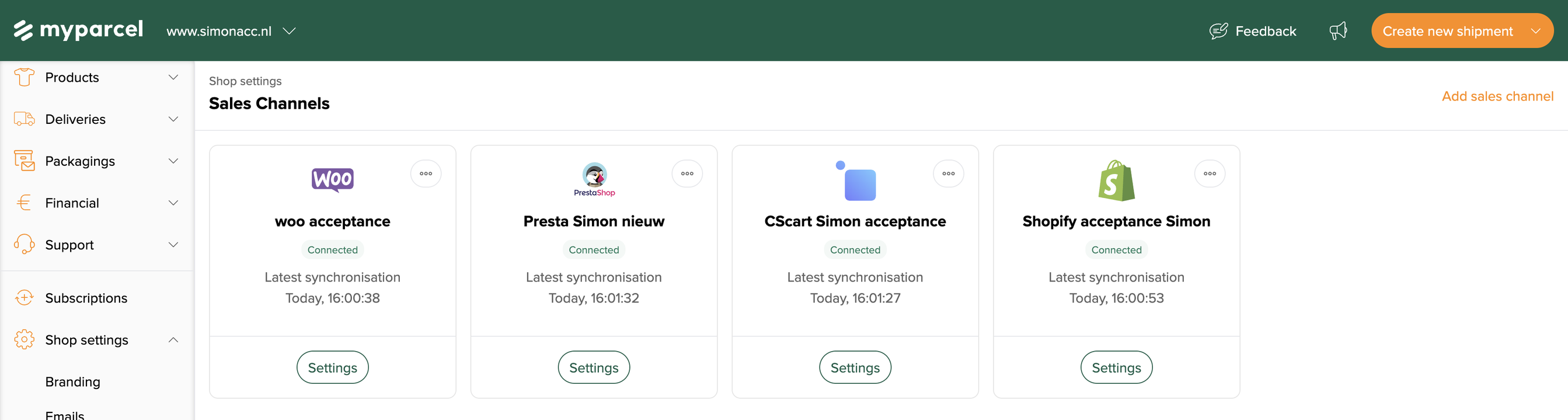
- Log in to backoffice.myparcel.nl and go to Shop settings → Sales Channels.
- Click Add sales channel (top right).
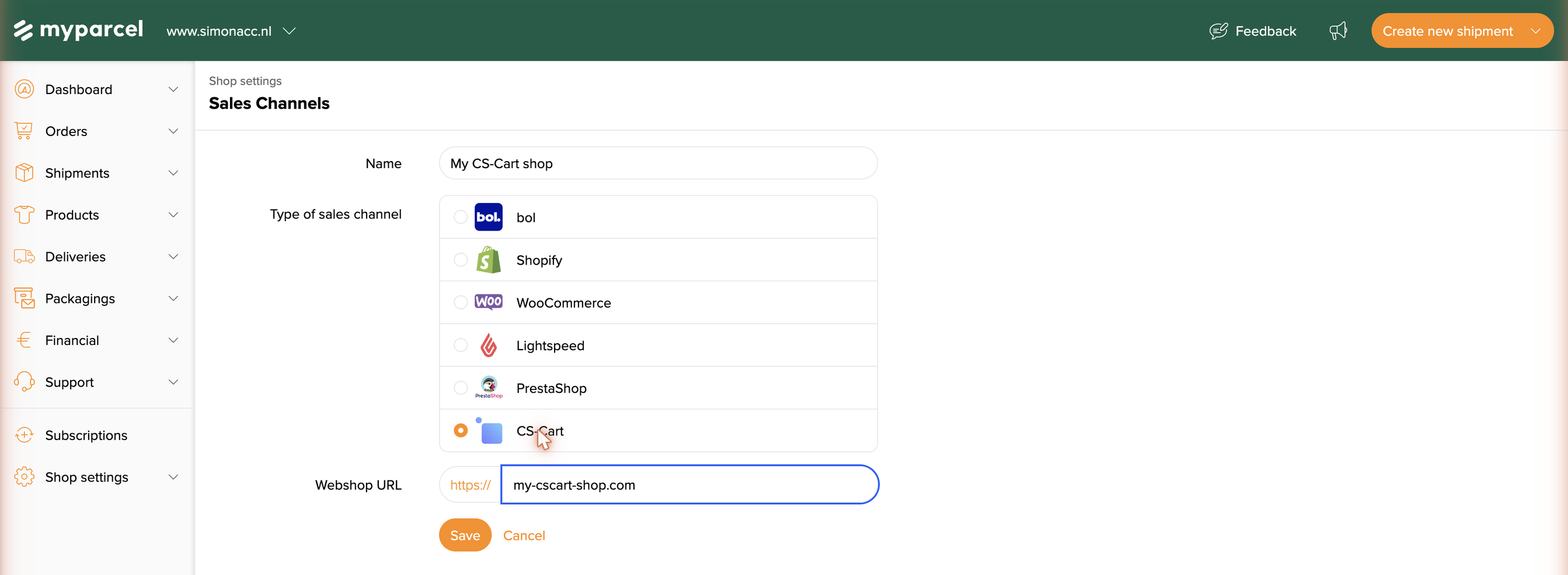
- Fill in a Name that helps you recognise the channel (e.g. My CS-Cart shop).
- Under Type of sales channel, choose CS-Cart.
- Under Webshop URL, enter the address of your CS-Cart storefront (e.g.
your-shop.com). - Click Save. The channel is created and appears with a Missing data badge, that simply means the authentication step still has to be done.
4 · Authenticating the channel
A sales channel needs permission to read your CS-Cart orders. For CS-Cart this is done with your CS-Cart e-mail address and CS-Cart API key (see What you need and where to find it).
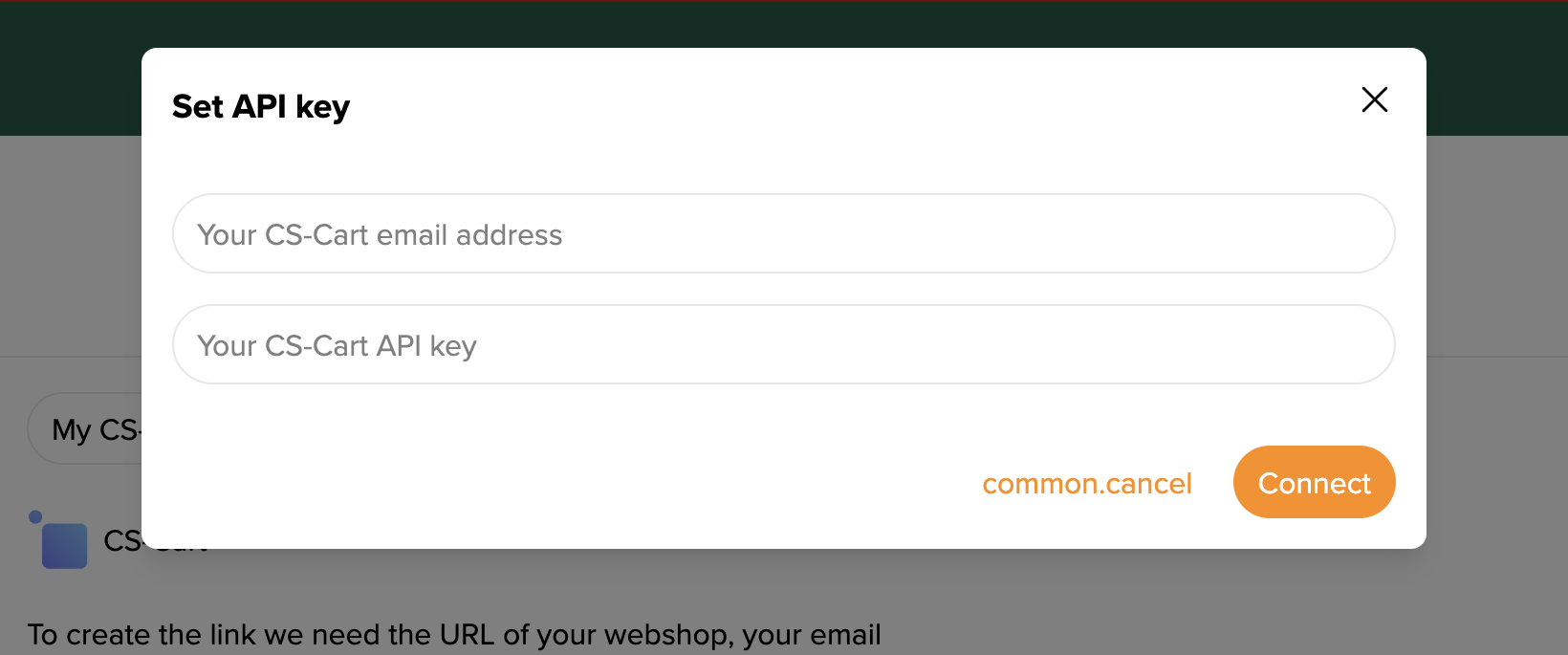
- Open the channel and click Set credentials.
- In the Set API key dialog, fill in:
- Your CS-Cart email address, the administrator e-mail from CS-Cart.
- Your CS-Cart API key, the API key from that administrator's profile.
- Click Connect.
Once connected, the Missing data badge disappears, the channel shows Connected and MyParcel starts synchronising your CS-Cart orders.
Not connecting?
Most common causes: an extra space pasted with the e-mail or API key · API access not enabled for that administrator in CS-Cart · a webshop URL that doesn't match the shop the key belongs to · the API key belongs to a different administrator than the e-mail you entered.
5 · Daily use
After the channel is connected, MyParcel imports your CS-Cart orders automatically:
- New CS-Cart orders appear as shipments in your MyParcel Shipments overview.
- Select the orders, create labels and hand them to the carrier, all from your MyParcel backoffice.
- You're only billed once a shipment is actually handed over to the carrier.
Bulk processing
Select multiple new orders with the checkbox at the top of the Shipments overview and use Process + Print labels to handle a whole batch in one go.
6 · Something's not working, diagnostics
Run through this table top to bottom, most issues are fixed within a few minutes.
| Symptom | What to check |
|---|---|
| Channel stays on "Missing data" | The authentication step isn't finished. Open the channel, click Set credentials and enter your CS-Cart e-mail and API key (§4). |
| "Connect" is refused | Re-paste the e-mail and API key without extra spaces. Check that API access is enabled for that administrator in CS-Cart, and that the e-mail and key belong to the same administrator. |
| No orders are imported | Check the Webshop URL is correct and reachable (https://…), and that the administrator whose key you used can see the orders in CS-Cart. |
| Some orders are missing | MyParcel imports orders it can read over the API. Make sure the orders exist and are visible to the API user in CS-Cart. |
| Wrong package type on orders | Imported orders fall back to your default package type in Account settings → Shipments. Adjust it there, or change individual shipments before processing. |
7 · FAQ
Is there a CS-Cart plugin?
No. CS-Cart connects to MyParcel only through a Sales channel in the MyParcel backoffice, over the CS-Cart REST API. There is nothing to install inside CS-Cart.
Where do I find my CS-Cart API key?
In the CS-Cart admin panel, in the administrator's profile under the API access section. Enable API access for the user and CS-Cart shows the key. The e-mail address is that same administrator's login e-mail. See §2.
Can I show MyParcel delivery options in the CS-Cart checkout?
No. The connection is server-to-server for importing orders; it does not add delivery options to the CS-Cart checkout.
Does the connection cost money?
No. The connection is free. You only pay for the shipments via your MyParcel rate.
How do I change the sender address on the label?
That's set in your MyParcel backoffice (Shop settings → General), not in CS-Cart. Changes apply immediately.
Resources & support
- backoffice.myparcel.nl ↗, sales channels, account, API key, billing.
- Contact MyParcel support, 023 - 30 30 315 · info@myparcel.nl.
This manual describes the current CS-Cart sales channel in the MyParcel backoffice. Screens on the CS-Cart side can look slightly different per version or theme; the data you need (webshop URL, e-mail, API key) stays the same.